More Fun with Photos on Your iPhone

It seems every time I have a play around with the camera on my iPhone, I find another way to improve the outcome or create effects. Here we’ll look at a couple quick tricks you can try when using “Live”.

What is Live on the iPhone Camera?

With Live Photos, your iPhone will record what happens both 1.5 seconds before and 1.5 seconds after you’ve snapped a picture. It’s like a micro video.

You can choose Live Photos by opening the camera app and looking for this icon . In situ, it looks like this:
If there is a line through it, it is off. Simply tap on it (again) to activate it.

If you haven’t tried the Live option before, you can experiment by taking a shot at something that includes movement, like people or even a tree whose branches are swaying in the breeze. After you take the picture, go to Photos and select it. It should “play” automatically.

Long Exposure on iPhone Live Photos

Have you ever wondered how photographers capture a trail of lights from passing cars on their camera? Probably with significant training in the use of a professional camera, but it’s also possible to get a similar effect using Long Exposure option on Live Photos with your iPhone.

You can also use it to create “ghostly” images of passing people (or animals).

I took the picture on the left using Live Photos. Then afterward I applied “Long Exposure” which gave the ghostly effect of the young girl in the foreground, shown on the right.

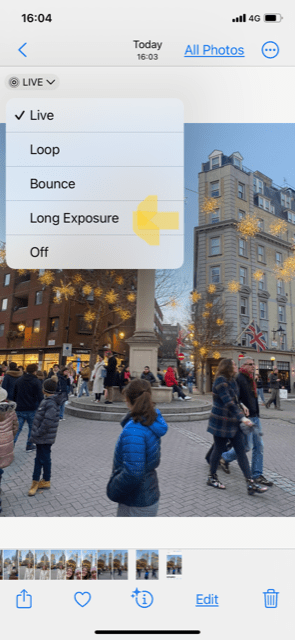
To do similar, simply select your chosen picture in photos . Tap the Live icon for a drop-down menu and choose “Long Exposure” (below).
Other Options in Live Photo

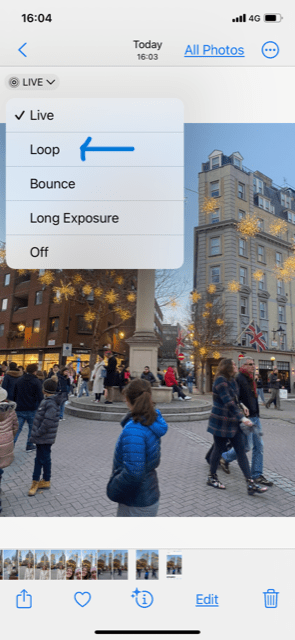
By choosing Loop instead (immediately below), you can create a super short video on repeat, like the resulting image second below.

Why not have a go with your camera next time you’re in a place with moving people or objects? You might surprise yourself with talent you never knew you had! Just remember to turn off “Live” when you’re done or you’ll find you quickly use up a lot of storage space…

If you’d like to automatically receive quick tips like these for taking more interesting photos or other ways to better use the technology you already have, subscribe below. It’s free and we never share your data.

Set an Alert for Price Drops

What if your smartphone or computer could automatically track prices and alert you when an item you want has had a price drop? This is already possible now using the technology you already have. If you already have access to Chrome browser ,you may be able to take advantage of this today (without adding any further apps). Here’s how…
Using Chrome’s Price Tracker

Save money and time as you shop

Track the price of a product across several online stores at once. You’ll get an email if the price drops on any site so you can buy when the price is right for you. This feature is available when you’re signed in.

  1. Open Chrome browser on your desktop or smartphone.
  2. Go to your chosen online store and find a product you want to track.
  3. Click Track price  (the bell icon) in the address bar.
  4. Click Track price to start tracking the item. Price drop emails will go to the Google Account you’re signed into.
  5. To stop tracking a product, click Tracking price  in the address bar, then Untrack.
  6. You can track the same or similar product across websites, which can be helpful if the item is carried by multiple online retailers and you want to make sure you don’t miss a promotional price on one or more of them.

Manage Tracked Products

  1. On your computer, open Chrome. 
  2. To the right of the address bar, click Side panel .
  3. From the down-arrow, select Bookmarks.
  4. Click Tracked products .
  5. Scroll to find the product you want to check.
  6. To untrack a product, tap Turn off alerts .

Tip from Chrome: Notifications about price tracking include multiple sellers. However, when you track a product from a website, the price and image from that site are the only ones shown in Tracked products.

Troubleshooting

If you don’t find the Track price icon on your address bar, first verify you are running the current version of Chrome. You can go to Settings and update just to be sure.

Next make sure your Web and App activity is switched on. Instructions to do so on your computer, Android or iOS device are here.

Finally, check your Sync option is on. In the address bar type chrome://settings/syncSetup and press Enter.
Scroll all the way down to the bottom of the page. There you should be able to find Get price tracking notifications. (If you don’t see it, check under Settings > You and Google.)


Toggle “Get price tracking notifications” to ON.

If you still don’t see the option to turn tracking on, bear in mind that the service is being rolled out and may not yet be available to you. It would be worth checking back in a few weeks.

Ready to subscribe to get updates automatically to your inbox? Simply input your email address and hit “Submit”, and you’ll get your first update next week.

How to Save Reading on Chrome

What is Reading List on Chrome?

It’s a similar concept to bookmarking we’ve covered in prior posts but with some advantages.

Instead of saving an article or story to a folder in your bookmarks, if you put it in the Reading List and you’re logged into Chrome browser, it will sync to your Google account, so it’s available on your desktop and phone. This makes it more convenient to access than bookmarking.

The other benefit over bookmarks is the offline feature. While you do still need an internet connection to add to your reading list, once pages are saved there, they can be read when offline ie without an internet connection.

Currently Reading List is available on Chrome on the desktop, iPad and iPhone but not yet Android.

How to Save a Page to Read Later

You will need to be online to save a page.

  1. On your computer, open Chrome.
  2. Go to a page that you want to save.
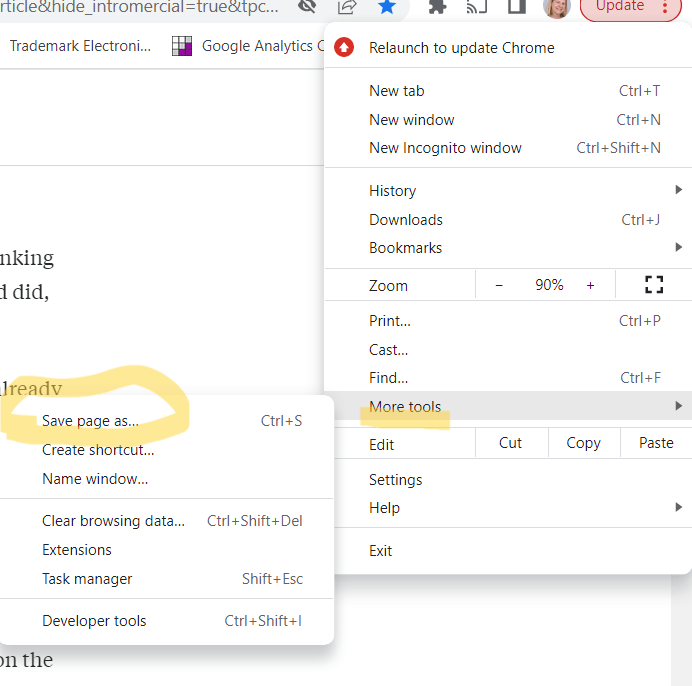
  3. At the top right on the elipsis (3 vertical dots), click More Tools > Save page as (see image below).
  4. Choose where you want to save the page. The default will normally be “Downloads”, but you can choose to save in Documents or a specific folder for example.
  5. Click Save.

Find an Existing Reading List

To access the Reading List, you’ll need to have the Bookmarks Bar visible. You can do that by typing Ctrl+Shift+B or from the ellipsis, go to Settings > Appearance > Show Bookmarks Bar.

Once visible, at the top right of your browser, click Side panel . 

Click Reading list.

From here you can either select something you want to read or delete (“x”). By hovering over it, you can change it between Read and Unread. Unread items will appear at the top of the list.

Using Reading List on iPad or iPhone

1. Open Chrome on your iPhone or iPad and find a page to save for later.

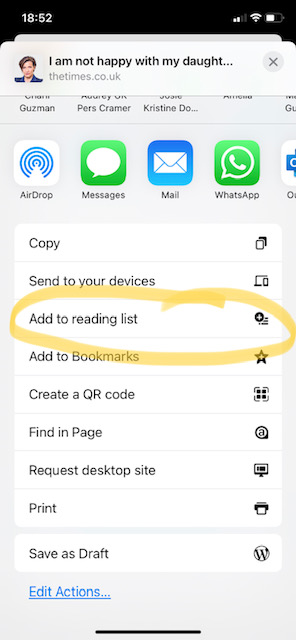
2.Next tap the share icon in the address bar.

3.Then, select “Read Later” from the menu. And the page will now be in your Reading List. See images below:

Now to access the reading list on your iPhone or iPad, open Chrome and tap the ellipsis (three-dot menu) icon at the bottom.

Select “Reading List” from the menu. Just as when using Reading List on your computer, the unread items will be listed first on iPad or iPhone. The figure to the right of the title of the item shows the number of unread pages.

So now all that remains is to find the time to actually read all the items you’ll be saving to your Reading List. I find being stuck waiting in a queue or on a long ride on public transport (especially when there’s no internet connectivity) is a good time to catch up on reading via my smartphone.

If you’d like to receive more tips like these directly into your email inbox, simply subscribe below. It’s free and we’ll never share your details without your permission.

The Basics of Messenger

You may feel you’ve got more than enough options with which to message friends and family without adding to the stack. However, you may find as I have that a few people in your circle use (Facebook) Messenger as their “go-to” messaging platform, so you may want to know the basics in order to reply to them.

What is Messenger?

Facebook Messenger is a free mobile messaging app which can be used for instant messaging, sharing photos, videos, audio recordings and for group chats with your friends and family on Facebook as well as with your phone contacts.

The Messenger app is separate to Facebook app, although both are part of Meta (the company). However, as a user, your profile can be set easily by using your Facebook account (or telephone number).
What are Messenger’s main functions?

  • Instant messaging
  • Photo/video sharing
  • Group chats – users can chat with their Facebook friends and phone book contacts
  • Record, send and listen to voice messages
  • Live, free video calling

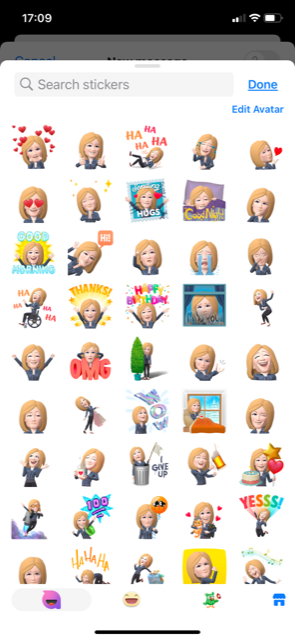
One of its added features also makes it especially popular with young people…the ability to add a wide array of fun stickers, including many with your personal avatar (see below).

Getting Started with Messenger

If you’ve got the Facebook app on your phone, you may find you also have Messenger. If not, you can download it for free from the App store (for iPhones) or Google Play (for Android phones).

It’s easy to get started! To see who you already have as contacts, simply tap the “People” icon at the bottom of the screen (see below, right).

This will bring up another screen, on which in the top right corner you’ll see the icon as below. Tap that, and it should bring up your phone’s contact list in alphabetical order.

To upload more contacts:

1. From Chats, tap your profile picture in the top left.

2. Tap Phone Contacts.

3. Tap Upload Contacts to turn this setting on.

Using Messenger

Decide how you’d like to get in contact with your friend or family…via chat, call or video call by choosing “Chat” or “Calls” from the bottom of the main screen.

If you choose “Calls”, you can then tap on either the phone or video icon to the right of the person in your contacts you’d like to call. Alternatively, if you choose Chat, you can either search for the person you’d like to contact or press the “write” icon in the top right corner before scrolling down to find the correct person. This will open a new chat if you’ve not done so before on Messenger or the existing string if you’ve messaged one another before.

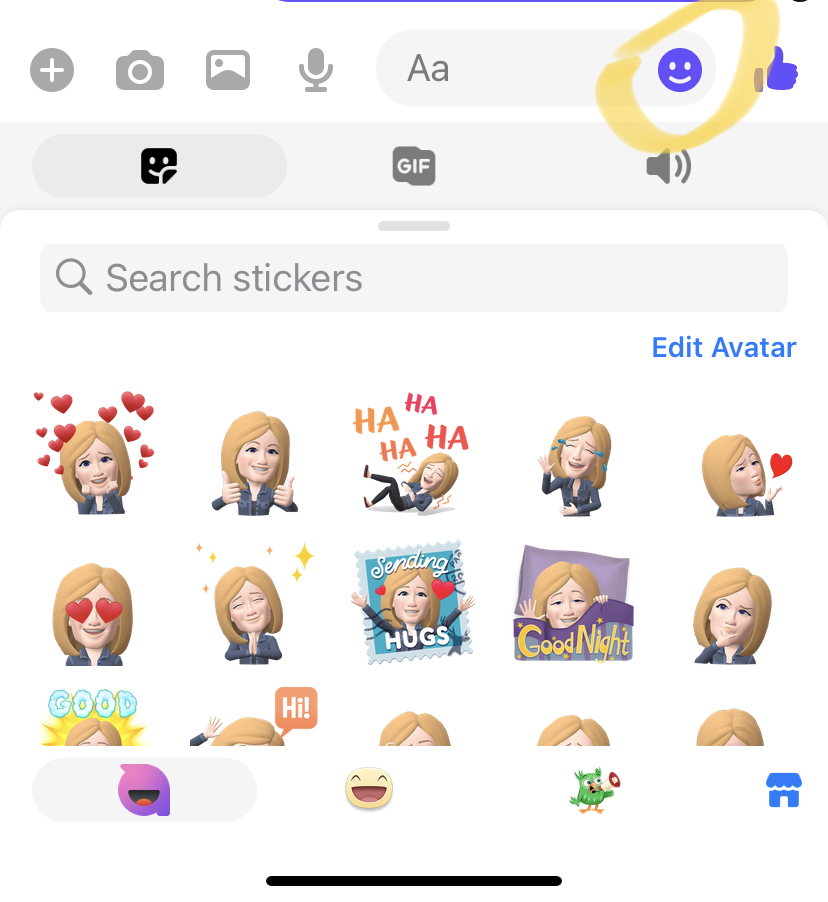
Try attaching a photo or video, sticker, pdf or voice message by choosing the relevant icon on the bottom of the screen (see below). The “+” will bring up memes, the camera will activate your camera so you can take a new picture to send, the landscape photo to the right of the camera enables you to select an existing still or video from your library, and the microphone enables you to record a voice message. The smiley face brings up stickers, and the thumbs up will give you the usual choice of emojis.

Here is an example of a meme that came up that I added to a chat with my daughter. For better or worse, once you select the meme, it sends automatically without requiring a further step of uploading, so you may want to avoid extraneous tapping when using this feature or you may find you’ve sent something that will have them scratching their head.

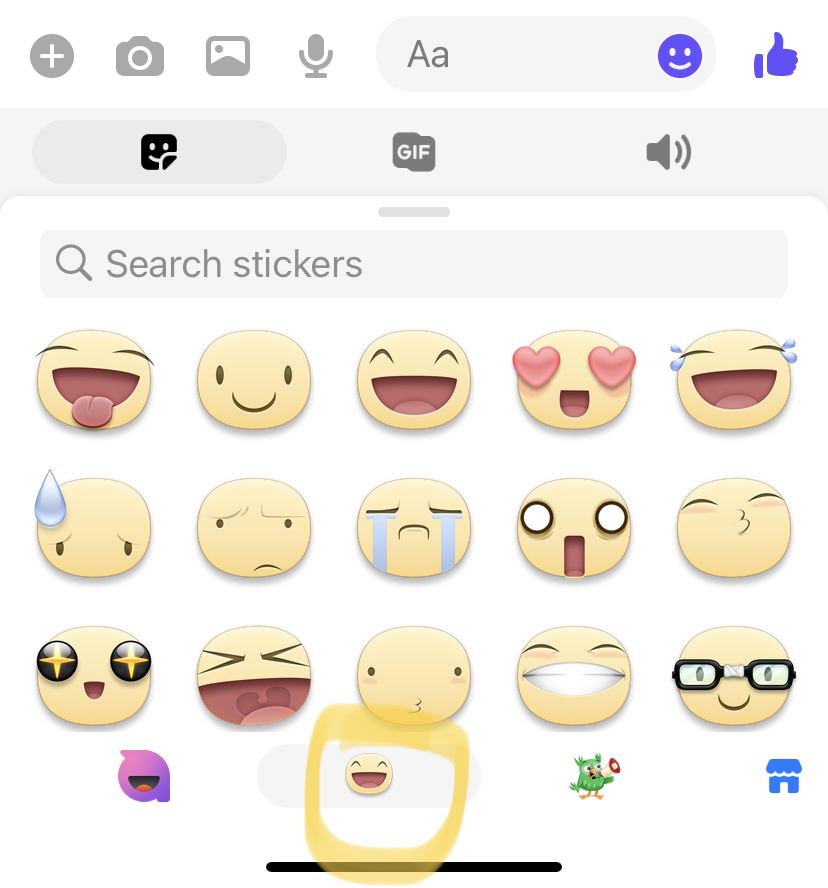
Why not have a look round the stickers that are on offer? You will probably find some seasonal options among other whimsical choices. You can access them with the icons at the bottom of the chat screen (see yellow circled icon below, far bottom right).

Messenger gives you an additional way to keep in touch with loved ones, free of cost. Social connection is one of the great joys in life, so why not have a go now?

If you’re not already subscribed to our blog, you’re missing out. It’s free and we’ll never share your details. Simply fill in your preferred email and hit “Subscribe” below.

Twitter Overview

Twitter has dominated the business news in recent days and weeks, having been purchased then shaken up by the world’s richest (and some might say quirkiest) man, Elon Musk. You might be wondering what all the fuss is about. Below you’ll find an overview of what Twitter is as well as where and why it’s popular.

Who Uses Twitter?

The country with the most Twitter users is the United States with nearly 78 million users. The other countries comprising the top five in terms of active users are Japan, India, Brazil, and the United Kingdom:

  • United States: 77.8 million
  • Japan: 58.2 million
  • India: 24.5 million
  • Brazil: 19 million
  • United Kingdom: 19 million

Although Twitter users run across the span of age groups, 25-34 years olds make up 38.5% of Twitter’s user base, the same figure as all those 35+ combined. Other individual age groups range from just under 7% to 21%. (Source: Statista 2022)

  • 13-17 year olds: 6.6% of users
  • 18-24 year olds: 17.1% of users
  • 25-34 year olds: 38.5% of users
  • 35-49 year olds: 20.7% of users
  • 50+ year olds: 17.1% of users

It Can Be a Boys’ Club

Twitter’s logo may be a bird, but the social media platform skews heavily male. Counter to Facebook, where there are more females than males, here males make up over 70% of Twitter’s users, while under 30% are female. When considering only users in the UK, the gap between genders is narrower, with 58.5% male and 41.5% female.

What’s Twitter For?

Unlike many other social media channels, the main reason for using Twitter is to get news. Here’s an overview of how people in the US at least are currently using Twitter:

  • 48% to get news
  • 48% to get entertainment
  • 34% to keep in contact with family and friends
  • 33% to follow brands/companies
  • 14% to strengthen their professional network
  • 12% for other purposes

Who Tweets?

The short answer is very few users actually post (called a “tweet”). In fact, research shows that only 10% of Twitter users are responsible for 92% of all tweets from U.S. users. Most users only tweet once per month on average. That means most people are visiting Twitter to read, rather than create. This makes sense when you take into account the figures above showing most are using the platform to get news or be entertained.

If you’d like to try out Twitter, we’ll be covering the basics of how to get started in an upcoming post. So be sure to subscribe below in order to get this and other future posts directly in your inbox.

If you’d like greater depth on this subject, head over to this article.

Tech Gift Ideas for Every Budget

With the holiday season on our doorstep, it’s a good time to start considering which gifts our loved ones might enjoy. If you’re like us, you’ll value doubly any gift that’s useful as well as enjoyable. We’ve looked into a few ideas for those on your list (including you) who would like to make better use of their existing technology.

Smartphone Stand

Simple is often the best choice, and you don’t get much simpler than a stand to conveniently hold your mobile phone at the right height and angle for hands-free video calling or simply safeguarding it from accidents or getting lost in desktop clutter. I use this whenever I work from home, and I highly recommend it.

Even when you are using your laptop for a video call, having the phone at the same height as your laptop camera means you can multi-task as needed without appearing as if you’re distracted. Other call participants will probably have no idea you’re busy looking up the details you didn’t have time or know to research ahead of the call. Like where Albequerque is located in relation to Santa Fe on a map of New Mexico. Or by which date you’d promised to deliver something critical to your group project…

Another handy feature is the cutaway or hole most models include for the charging cable so that you can charge the phone while you’re using it without the cable getting in the way. Here’s a simple model I’ve been happy with, and at under $15/£13, it makes an affordable gift. It easily adjusts in height and angle get just the right frame for whatever you’re doing. I’ve even been known to “go analog” and use the stand to balance note cards on for an interview so that I can refer to them without diverting my eyes from the camera.

Travel Smartphone Charger

For the traveler on your list, this global device charger is a thoughtful gift that will charge smartphones, laptops, tablets… up to 5 devices at one time. Moreover it covers wall outlets in over 160 countries and automatically detects the correct voltage and optimizes charging for each device. It’s super portable, and at under $20/£17 provides great value.

Power Bank Charger

For the times you need to charge your smartphone while on the go, this top-rated powerbank will keep you connected, no wall outlet required. It holds more than 4 full charges for an iPhone 11 or around 5 charges for an iPhone XS or Samsung Galaxy S10 before needing to recharge the power bank itself. A bit more dear at close to $40/£35, its value will be fully appreciated when it saves the user the hassle of running out of juice while out and about.

Airpod Case Cover

These make a great stocking stuffer for anyone on your list who already owns airpods (cordless Apple earphones). Not only does the sturdy silicone cover add protection if (when) the the case is dropped, but they also make it super easy to distinguish one person’s airpods from another’s. With these available in over 30 shades, it will be easy to choose a different color for each recipient in a shared household. And with options in whimsical designs like those below, even the hard-to-please teens on your list will be delighted. And at under a tenner (as low as $7/£6), you can afford to take a chance on their preferred design.

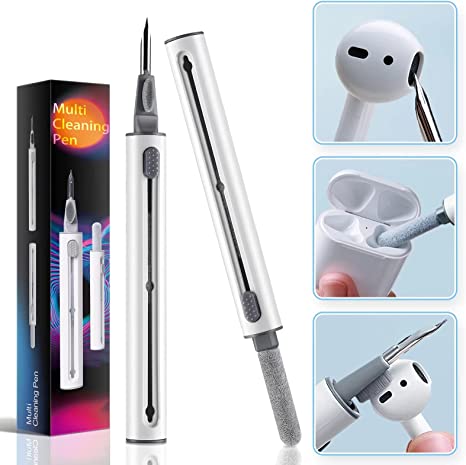
You may want to pair the above with an airpod cleaning kit for the persnickity people on your list. This will help the user keep the airpods free of grime while emitting a “clean” sound.

Apple Airpods

And if you want to splash out ona loved one who doesn’t already own a pair of airpods, nothing other than around $180/£190 (yes these are more expensive in the UK) and a quick trip online or in person to the Apple store or other third party retailer (eg Walmart) can stop you! Just be aware if you’re buying brand new vs a “refurbished” set. The latter will usually come with a guarantee, but not everyone will appreciate a wearable device that was once worn by a stranger….

We hope you’ll have found at least one of the above suggestions helpful for the giving season. We’d love to hear if you’ve got another tech gadget you can recommend to our readers. Simply drop us a comment below.

And if you’re not yet subscribed, you’re missing out. Just let us know the best email to reach you, and we’ll automatically pop our future posts into your inbox.

Leave a comment

Technology Among the 50+ Club

According to a 2021 study from AARP (American Association of Retired Persons), those of us who are over 50 can’t get enough of technology. Interested to know what we have adopted and why? See how your answers compare.

Top Reasons for Adopting New Tech

The top motivator for all adults 50+ is wanting to stay connected, with 66% citing this reason. In addition 59% of us have turned to technology to be entertained and 47% find it helpful in managing day-to-day responsibilities. Many also use technology to stay healthy (43%), to learn a new skill (38%), or to pursue a passion (36%).

Unsurprisingly, embracing technology to maintain personal independence increases with age:

  • 22% amongst 50–59 year olds
  • 29% for those 60-69 year and
  • 35% for people 70-plus

What We Want to Learn About Tech

Adults 50-plus continue to want to learn about technology adoption. Main interests among this group surveyed include learning how to manage smart-home technology (23%), video chat with friends and family (22%) and stream entertainment from sites like Netflix (22%).

If you’re amongst those looking to pick up some new skills in these areas, you can check out our posts on these topics here (intro to Zoom video chatting), here (3 easy steps to using FaceTime), here (how to add multiple people to FaceTime) and here ( using video chat to help others). We also covered the basics here of how to stream from your smartphone or tablet to your TV using an affordable device called Chromecast.

Looking Ahead

Interest in technology among older adults continues to grow. By way of example, many are not just concerned with catching up on current technology but are aware of and interested in new advances, with 64% of 50-plus adults interested in at least one type of upcoming innovation.

Putting their money where their intentions are, older adults continue to spend on technology. Most (70%), in fact, made a tech purchase in the past 12 months. That’s on par with the 72% purchase rate for 2020, when the pandemic-fueled uptick kicked in with a significant jump from 2019’s prepandemic level of 51%. 

In macro terms, people’s spending on technology remains over double that of prepandemic levels, at $821 average compared to $394 in 2019. Within the next 8 years, the 50-plus market is projected to swell to 132 million people who are expected to spend on average $108 billion per annum on tech products.

What would you like to acquire in terms of new tech and what would you like more help in leveraging with your current tech products? Leave your thoughts in the comments.

If you aren’t receiving updates automatically into your inbox, it’s as easy as putting your email address in the box below and hitting “Subscribe”. It’s free, and we never share your data without your consent.

Leave a comment

Intro to Google Reverse Image Search

What is a “reverse image search”? This is where you take an image you already have and use it as the input (instead of words) for a search. This can be done to find either what it is or more about it and/or to find similar images.

Is this even possible today? Yes, and there are many situations where this is particulaly useful.

Why Use Google Reverse Image Search?

Last week when my sister and I were having a clear-out of our childhood home, we came across an object that neither of us was familiar with. We didn’t know if we should save it for another family member, add it to the stack of items for a garage sale, or put it directly in the recycling bin. So I took a snapshot of it on my smartphone (see below if you’re curious) then dropped that into Google’s reverse image search engine. If you also are unfamiliar with it, you’ll see what we learned from the search results we received…

Another way I’ve recently used the reverse image search is when I’m impatient reading about some awesome destination on blog about visiting and living in different places around the world. But frustratingly, the publishers show you an amazing photo of a mystery place and then spend 4 pages of copy talking about it without revealing where it is. Usually at the end they try to entice you to find the answer by signing up for a webinar or more literature. Life it too short to get lost in someone else’s maze, so if I like the look of the photo, I drop it into reverse search and presto, I can see similar images and where this mystery spot is located. I nearly always find the identical image that was used, so I can be sure I’ve found the answer.

And for anyone prone to pursue a purely online relationship, using reverse image search can help confirm if the person is who they say they are rather than them “catfishing” you. Catfishing is when the person takes an image of someone else (usually more attractive) they’ve “borrowed” without permission and claim that it is of themself. Often this is accompanied by false “facts” about themself to make them appealing so that they can “hook” you in romantically before scamming you, usually for money or other valuables. However, it’s super simple to drop their supposed profile or other photo into reverse search and see if there are similar images that are attributed to a different name to the one they’re using and/or facts (where they live, what they do, if they’re married) around that person whose image it really is are inconsistent to what you’re being told.

Now that you can hopefully see the value of the tool, we’ll show you how easy it is to use.

How to Use Google Reverse Image Search

1. Grab a digital copy of the photo you want to search on. If you only have a printed copy, simply take a snapshot of it in good light (avoid glare) with your smartphone.

2. Go to images.google.com (type this into your browser). You’ll get a search page that looks like this:

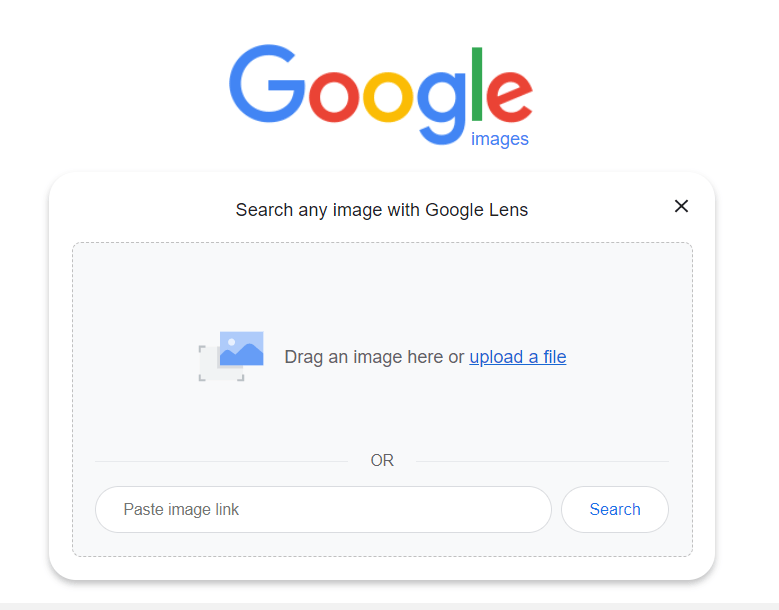
3. Select the camera icon (on the right side of the search box, middle icon above), and you’ll see this:

4. As indicated, if you have the photo on your device, tick “upload a file” and go to your saved picture (in downloads, pictures or other saved file) and tap the “Search” button. Otherwise if the picture is on a site, copy to web address and drop into the “Paste image link” box before hitting “Search”.

5. Once you get the image results, decide which most closely matches your original and tick on the result to see more information on it.

In our case, the mystery object appears to be a roller cutter for fabric and paper. Now if we could only figure out how to get it to cut anything…

Give reverse image search a try, and let us know what you think!

Get short posts like this into your inbox automatically each week by subscribing below. It’s free, and we don’t share your data.

Gransplain.com