If you’re an avid follower of Gransplain, you’ll already know how to save, find and open a single browser tab by bookmarking. If you missed that post, you can find it here. However, what if you’d like to bookmark all your open tabs at once?
Say you’ve been working on a particular project and you’d like to keep all your web sources to hand but prefer to get them out of sight so they don’t get confused with ones you’ll be searching on for another project? It’s especially handy if you don’t want to mix business with personal admin. You can close all open tabs in one go and keep them together in a bookmark file so you can later re-open them all. Here are the simple steps to do so if you’re using the most popular browser, Chrome….
Bookmarking Multiple Tabs at Once
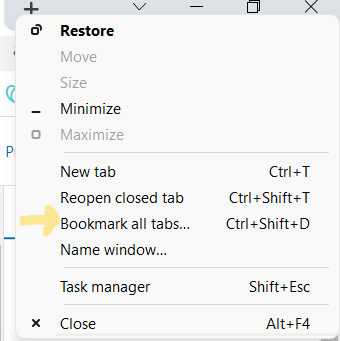
Simply right-click in the open space at the top, next to the tabs, and then select “Bookmark All Tabs.” Alternatively, you can use your key commands by pressing Ctrl+Shift+D if using Windows or Cmd+Shift+D if instead you’re working on a Mac.
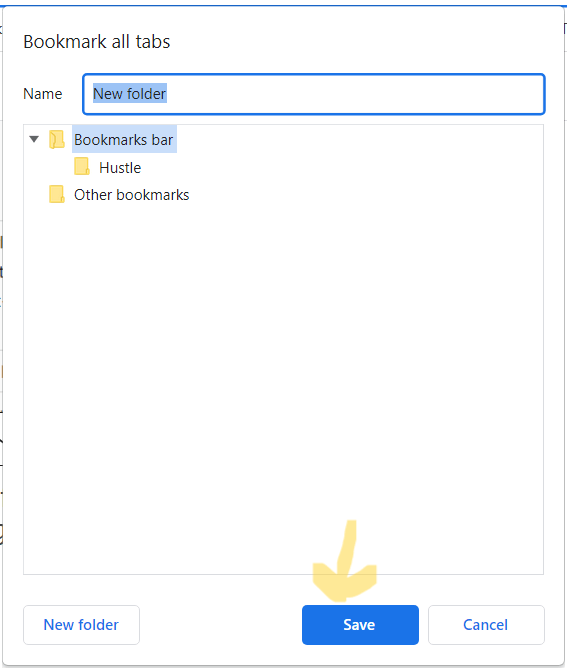
Chrome will create a new folder for all your open tabs. You can rename it as you see fit, eg with today’s date or the theme of your project. Then click “Save.”
Managing your Bookmarks
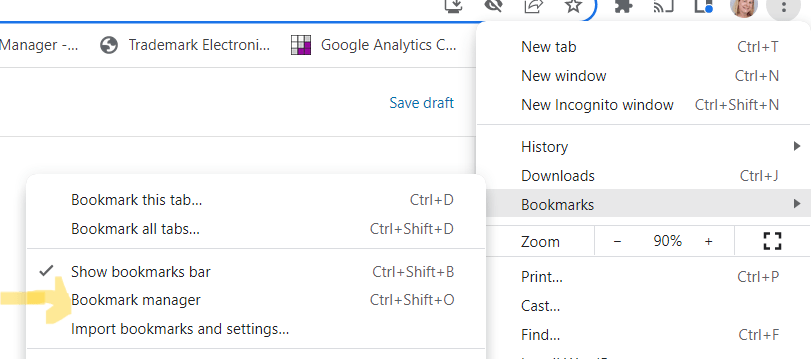
You can see and organize this and all of your bookmarks in “Bookmark Manager.” To navigate there, click the three vertical dots at the top of the window, and then click Bookmarks > Bookmark Manager.
You can right-click your chosen folder in “Bookmark Manager” or the “Bookmarks” menu to see options. Click “Open All Bookmarks” to quickly open all the websites in a folder.
You can also choose whether you want to open your bookmarks in a new window or a new incognito window.
Once the folder is created, you can easily removea single website within it. Simply select it, and then click “Delete.”
Likewise, to remove an entire folder, right-click it, and then select “Delete.”
Next week we’ll cover an even easier option for saving tabs on your browser, especially if you don’t want to keep them forever. If you’d like to automatically receive the weekly Gransplain post, simply add your email address below and hit “Enter”. We’ll keep your details just between us.
It’s easy to be swayed into thinking technology is about gadgets that are more flash than substance. But the reality is that tech has improved the area of education in a number of game-changing perspectives. We’ll look at 5 of the top ways that tech could be useful to you and/or your family members.
Open Education – In our technologically-enabled world, there are numerous free options for university-level courses available even from very prestigious universities. So you are no longer restricted by your geography. Simply access the internet through your laptop or smartphone and choose the best option for you. Coursera and Udemy are examples of course aggregators that offer a wide selection from one place.
Learning at your own Pace – Just as many online courses can be done remotely, they can also be completed asynchronistically… meaning you can devote as much or little time each week as you prefer and fit learning into your own schedule. Note some online courses have a total time limit to complete, but these are usually very generous like 6 months to complete a 16-hour course. And unlike structured classes, the new content is available 24/7.
Improved Communication – Students often form chat groups using platforms like Whatsapp, where they can find almost immediate answers to their questions. This helps form a community as well vs the old style of one-way communication from teacher to students. At the same time tech has made it easier to get real-time input from the professor or teaching assistant, avoiding the risk of going off in the wrong direction.
Time Saved in Advanced Research – Decades ago, the quality of information you’d find on a specialized subject would largely depend on the quality and size of institution (library, university) where you were searching. You’d often have to hunt down materials that would need to be borrowed from other libraries, all requiring the intervention of a professional librarian. Today, thanks to search engines, like Google, students can find a wealth of information on their desired subject matter from diverse sources regardless of where they are studying.
Real-time Assessment – thanks to advanced computing power, students no longer need to wait for the end of mid-terms or the entire semester to know how they’re doing compared to expectations. Students and their teachers can track individual and cumulative performance in real time, allowing them to adapt accordingly eg if a particular subject topic needs more focus.
And bonus content… perhaps the most important benefit of technology in advancing education has been to make it more engaging and fun! Rather than reading hundreds of pages of dry text or listening to a professor drone on without interaction for the entire class period, technology has made it easy to incorporate 3-D models to enhance understanding of difficult concepts or insert videos and other images to add context to human studies, making them more memorable.
Drop us a comment to share your favorite enhancement to education that’s been made possible by new technology.
If you’d like to get next week’s (and all future weeks’) posts directly into your email feed, simply subscribe here. There’s no cost, and we will never share your details.
NextGen TV is starting to roll out to a number of countries including the US and UK. It’s already a reality in others, particularly in Asia. What does this mean for you now?
What is NextGen TV?
ATSC 3.0 is the technical name of what’s been branded as NextGen TV. The headline feature of NextGen TV is the picture quality. In short it will bring higher quality 4K video as well as clearer Dolby audio.
For the technically-minded, live TV broadcasts until now maxed out at either 720p or 1080i resolution, but ATSC 3.0 can take things up to 2160p 4K in HDR, with wide color range. That’s due in part to a boost in the amount of data in the broadcast signal from 19.4 Mbps to a variable bitrate of up to 57 Mbps.
Now back to the rest of us…that means at least a four-fold increase in detail, better contrast control and improved color reproduction for films and TV.
The technology can also deliver television to your phone, tablet or car (depending on your manufacturer).
Do I need to buy a new TV?
You will need an ATSC 3.0 tuner to be able to watch NextGen TV, but that won’t necessarily mean buying a new TV set. Two of the biggest TV makers, Samsung and LG, are both South Korean and, given their home nation’s early adoption, are on point with ATSC 3.0 tuners.
Along with Sony, many of their recent TV sets already come future-proofed with an ATSC 3.0 tuner. Check the specs of your model to find out whether it has one.
Even if your set doesn’t have one, then you’ll be able to buy just the ATSC 3.0 tuner as an external set-top box that you can attach to your TV. Theoretically, you’ll only need one such tuner for your entire home, which could then split the signal to all of your TVs. A TV tuner that you attach to an existing TV set should cost under $300.
If you are planning to buy a new TV anyway, be sure to look for the NextGen TV logo on the box before purchase.
What else can NextGen TV do?
ATSC 3.0 is also designed for mobile use, and there are already mobile chipsets available that include tuners. So next time you buy a phone, tablet or in-car device with one of those inside, you’ll be able to watch live broadcast TV wherever you are…. yea.
A more useful connected feature of NextGen TV is the emergency alert system. With geo-tagging your viewing location, there will soon be the ability to use TVs, mobiles, tablets and everything else with an ATSC 3.0 tuner to deliver emergency information, with the potential to save lives with benefits such as geo-dependent evacuation plans.
Perhaps more of interest, NextGen TV is also designed for interactivity. Imagine being able to push a button on your remote to access more information on the topic being broadcast. For instance, a map or general info on the area where a news story is taking place or more content around someone being interviewed.
When?
The timing will be driven by a combination of the take-up by consumers and the content providers (broadcasters). The higher the percentage of enabled TVs, the more confidence broadcasters will have to put out NextGen-enabled films and TV programs.
To put this into perspective, in South Korea, the country leading the way, ATSC 3.0 services were deployed in 2017 now reach over 70% of the population. If the pattern of technology roll-out follows that of other services, the pace for countries following the leader should accelerate dramatically.
In the United States, the roll-out varies by city. As of this writing, ATSC 3.0 is currently on the air in more than 50 markets with another 17 markets readying to launch. The overall picture is below, where if at least one city is up and running, the state is marked with the “on air” or “readying” status. You can check your city’s current status on this site.
In the United Kingdom, the timing is less clear. As of end-2021, all receivers that are NextGen TV-enabled should bear the logo. That’s a start. As the Chief Technical Officer for the National Association of Broadcasters has said, “This new expanded set of tests for 2022 products will increase confidence from broadcasters to provide more services, from TV set manufacturers to implement more features, and from consumers to look for products with the NEXTGEN TV logo.” Stay tuned for updates.
If you’d like to automatically receive the weekly post into your email inbox, subscribe below for free.
Do you have more than one email provider? Maybe you’ve got a legacy Hotmail or Yahoo! account you feel you need to check every so often in addition to your “main” account eg Gmail?
One way is to download onto your phone apps for each provider, but this can get unwieldy. Fortunately, there is an easier way to manage multiple accounts in one place on your phone.
On an iPhone
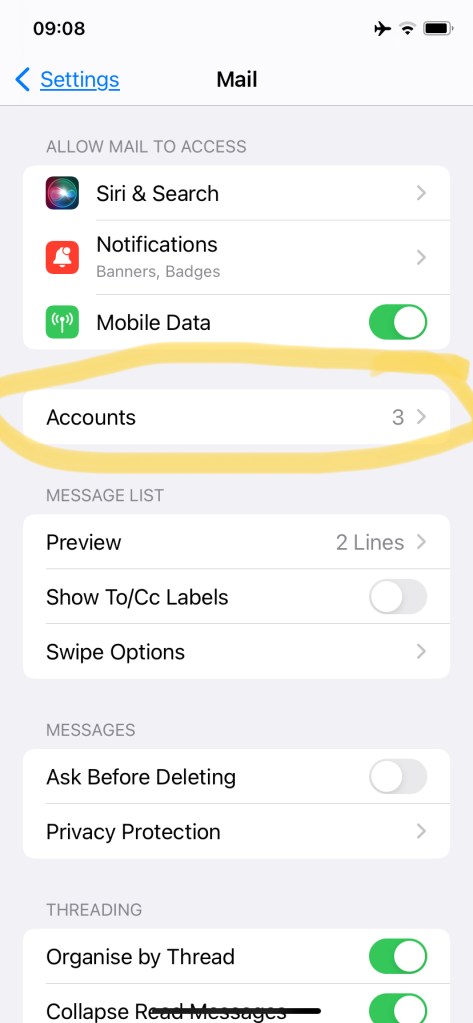
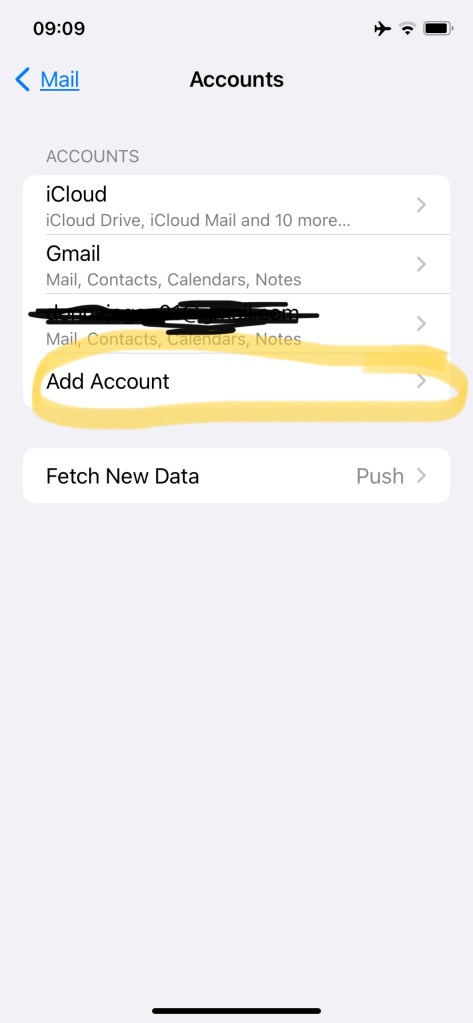
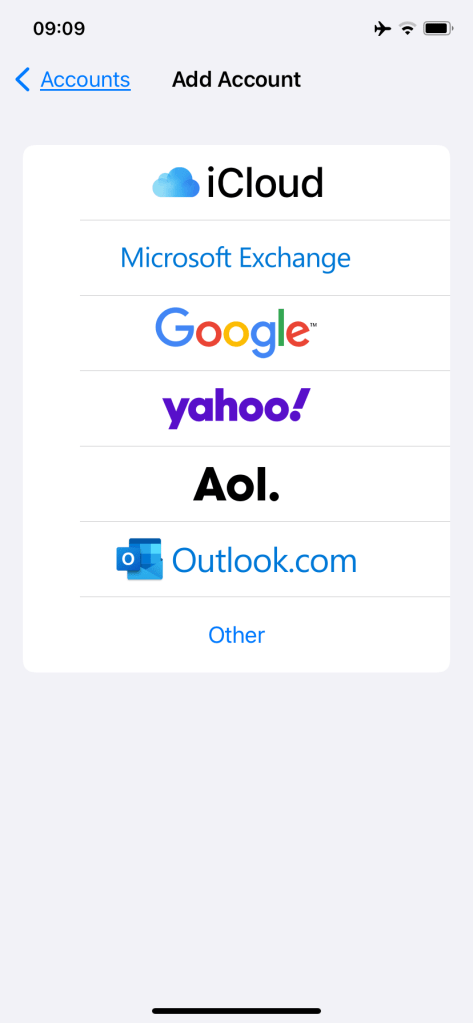
Start with the default email app. Now to add an account, open the Settings app , access the Mail submenu. Select “Accounts” and tap on “Add Account”. Choose the provider and follow the prompts. See below the steps from within Settings.
On an Android Phone
Download the Gmail app. Tap the menu icon at the top left. Tap on “Settings” and select “Add Account”. Choose an account provider and follow the prompts.
If you’d like to automatically receive updates for getting more out of your smart technology, simply fill in your email below and hit “Subscribe”. We always keep your details just between us.
If you’ve ever found your TV remote not working even after replacing the batteries, you can check if the issue is with the remote itself by using your smartphone. Here’s how….
Open your camera and tap the icon to bring up the front-facing lens, shown below highlighted in yellow.
Now point your TV remote directly at your screen and press a button. If you see a red light emit from the front of the remote, that means that the infrared signal, which is undetectable to the naked eye, is indeed working. See the small purplish shape in middle of the remote in the below picture? That shows it’s working.
Blame the batteries and replace with those you know are fresh.
Did you know you can subscribe for free to receive new posts automatically each week? Just fill in your preferred email address (which we never share) and press Submit.
This isn’t meant to be a post about the lapse of proper grammar (although a moment of silence for the demise of the words “which” and “whom”, please). Rather it’s a post about a fabulously accurate, easy and free navigation system you can access on your smartphone.
What’s so Great about What3words?
What3Words is unique in a couple of important ways. 1) It is highly accurate, dividing the world into “patches” of 3m or 10ft squared. 2) It works even where there are no roads or paths. In the middle of a park or field, for example. Or along an expanse of beach. Anywhere you might be hoping to meet up with others or have your lunch delivered, for example.
How does What3words Work?
What3words divides the world into a grid of 57 trillion 3-by-3-metre squares, each of which has a three-word address. The addresses are available in 50 languages. The system encodes geographic coordinates into three permanently fixed dictionary words. It takes out any rude words or homophones (words that sound like others, for example hour/our). However, that doesn’t stop there being some amusing combinations; the front door of 10 Downing Street in London (the Prime Minister’s address) is identified by ///slurs.this.shark.
Why Care about What3words?
It provides a more accurate location. And this can be especially valuable in situations like crowded street corners, expansive parks or beaches or in cases of emergencies, where you need to be found as quickly as possible. The London Fire Brigade, London Met Police and Los Angeles Fire Department already use What3words to more quickly locate people needing help. It also works better in voice navigation vs trying to pronounce long street names. The illustration below shows the difference in precision in comparison to using the intersection of streets “X” and “Y” as a guide, which could easily be 4 or more locations. With What3words, each of these locations has a distinct 3-word address.
Credit: what3words.com
How Can I Use What3words?
If you are looking simply to give someone directions to your desired address, you can go to what3words.com and type in the street address. This will bring up a map, and you can choose the exact area for which you’d like a 3-word address. Then simply share the words in that order.
If you’re looking to find a 3-word address, you can do so on the go by downloading the app (it’s free). You can find it in your favorite app store. Once downloaded, look for the icon and tap to open. Type in your 3 words with a “.” between each. See below, left. Then if you’re looking for directions, tap “Navigate”. You’ll be brought to a (third party) map, where, as normal, you can choose your desired mode of transport (car, bus/train, walking) and simply follow the blue dot to the pinned location (in red). See below, right.
This is an actual example of navigation I needed this weekend to find a party in a very large park (Regents Park in London). As you can see from the map, there are few signposts guiding you exactly where to find your friends, so What3words was invaluable.
You might want to check out the website now to familiarize yourself with how easy it is. And while you’re there, why not find out what the 3-word address is for your front door? I’ve noted mine down in the Notes section of my smartphone in case I need to access it quickly to give to emergency services, when I might feel flustered.
If you don’t want to miss future posts about useful technology you can use today for kit you already have, subscribe below. You’ll get our weekly posts into your inbox automatically, and we never share your details without your permission.
With these further tricks to help your old phone run faster, you’ll not be so quick to get rid of it just yet. If you’ve missed the prior top tips (and you really should start with those, you can find them in Parts 1 and 2 here and here, respectively.
Turn on Chrome’s Lite mode.If you’re waiting longer than what seems normal for webpages to load, your phone might be struggling to process data quickly, and if you use an Android Smartphone, you may benefit from switching to Chrome Lite. (Note that Chrome’s Lite mode at this writing is incompatible with iPhones and iPads.) Below are the instructions straight from Google:
How lite mode works When you use lite mode, some of your web traffic may go through Google servers before being downloaded to your device. If the page is loading slowly, Google servers may simplify it so that less data gets downloaded to your device. Most of the time, your pages will look and work the same.
If you’re using lite mode, keep in mind that:
If you browse in private, lite mode won’t work.
Some websites might have trouble finding your location.
You might not be able to use pages on a local network, such as an internal company site.
You might have trouble with premium data services provided by your mobile operator. You also might not be able to sign in to your operator’s website.
When you go to a secure page that uses HTTPS, Chrome sends the URL to Google to load faster. Only the URL is sent, and Chrome doesn’t share your cookies or personal data with Google.
Turn on Lite mode
On your Android phone or tablet, open the Chrome app Chrome.
At the top right, tap More More and then Settings.
Under ‘Advanced’, tap Lite mode.
Turn on Lite mode.
If you’re on a page that was simplified, you can go back to the original page without changing your settings. To see the original page, at the top, tap Lite and then Load original page.
See how much data you’ve saved
On your Android phone or tablet, open the Chrome app.
Tap More and then Settings.
Tap Lite mode. At the bottom, you’ll see a list of the sites that you’ve visited and how much data you’ve saved.
Restart your phone regularly
A quick (30-second) restart will give your phone an instant speed boost by freeing up your memory, eliminating background processes and apps, and releasing any stuck apps. Even if you regularly swipe away apps, they might still be holding onto some RAM, which quickly adds up. And particularly if you’ve not got a lot of memory to start with, a weekly restart should make a significant improvement in your phone’s performance and battery life.
Re-Customize your Display
You probably set up your display just the way you wanted it when you first bought your phone, but it might be worth a re-visit. With a few tweaks, you can extend your phone’s battery life and speed up performance…without sacrificing your eyesight.
Lower the screen resolution: Many phones offer the same option as PC monitors for a lower resolution in the Display settings. This will have an immediate impact on battery life, and with the screen being so small, you probably won’t notice the difference anyway.
Turn on dark mode: If your Android phone has an OLED screen, using dark mode will actually extend the battery life because it’s using less power to light the display. Unlike LCD screens, OLED displays turn off the pixels to achieve blackness, so using fewer pixels is more efficient.
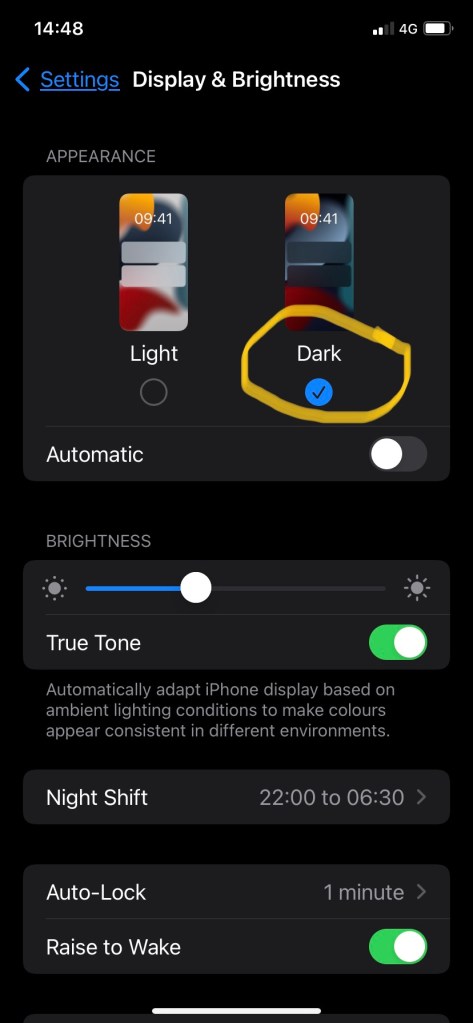
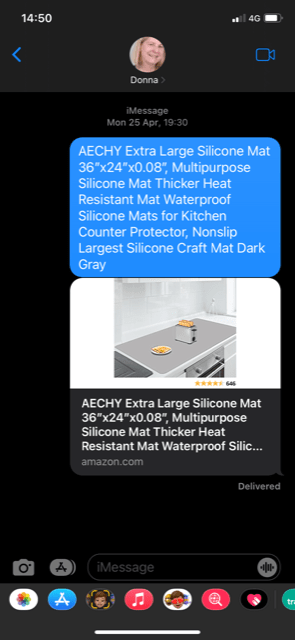
On your iPhone or iPad, tap Settings > Display & Brightness and tap the Dark theme under “Appearance” (see images below). This will automatically change the theme for built-in apps like Files, Messages, Music, News, Notes, Photos, Safari, and TV, as well as in some compatible third-party apps, such as Gmail. Others, like Facebook, will need to be switched on from its app. An example of what a text will look like is the third image, below.
Turn off the always-on display: The “always-on” display can be a battery killer. You shouldn’t be clock watching anyway! Put your phone back in your pocket where it belongs. You can always turn on audio Notifications if you’re expecting an important message.
If you’re looking for more tips on maximizing the life of your iphone battery, check out one of our earlier posts here.
We’ll be sending additional tips on prolonging the life of your smartphone battery, so if you’d like that and other posts directly into your inbox each week, subscribe below. It’s free, and we promise we won’t share your data with anyone else.
If your Android or iPhone are older and have become sluggish or properly creaky, follow our top tips to speed things up. The top 3 tricks can be found in our prior post here. Below you’ll find additional simple fixes that may, well, fix the slow reaction.
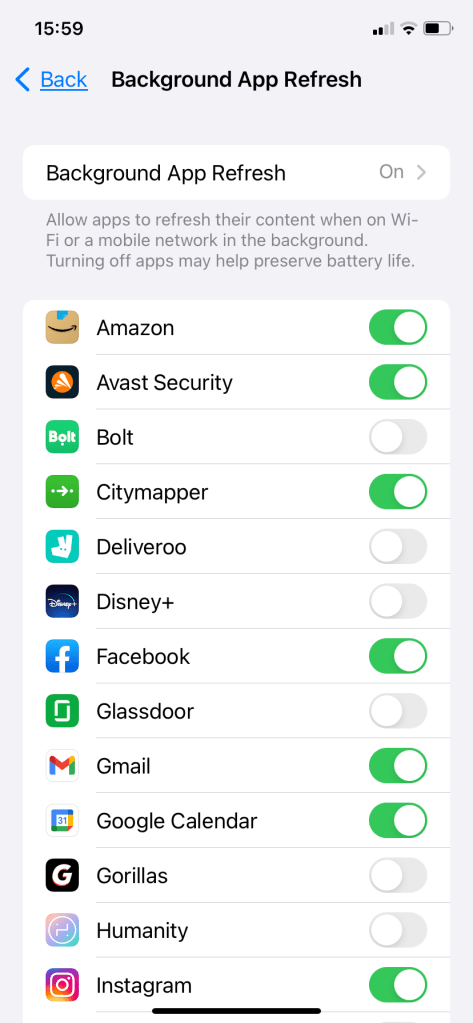
Close background apps. Even though smartphones’ operating system and hardware have great data processing ability, it can be slowed down if you have many apps running in the background. You may need to shut down some of them not being operated for the moment. The usual suspects are music or navigation apps. Go to Settings>General>Background App Refresh and you can see what other apps are allowed to update data in the background. You can turn them on or off individually, as to your preference. I’ve chosen below right based on frequency and importance of use. For example, I’m often not able to use WiFi when I need Citymapper (a travel directions app), so I’d like that to refresh in the background.
Turn off automatic app downloads. Use these steps: Settings>App Store>Toggle apps option to “Off”.
Remove old text messages. A large number of text messages will eat up your iPhone memory and slow down it. Here’s a link to our post on how to delete text messages.
Empty your browser’s cache. If you’re doing lots of searches, you already know this will eat up lots of memory and slow you down. Here’s a link to our post on how to clear that cache.
Disable Location Services.If you have turned on the location service, apps on iPhone will continuously ask for a location using cell data. So if your network environment is not good enough, your smartphone will become slow or even stuck. If you don’t need it at the moment in time, you can disable this feature: Settings > Privacy > Location Services > Turn it off completely or for certain apps.
You’ll find the final instalment on tricks to speed up your old smartphone in the very next post. Be sure to get this and all future posts directly into your inbox each week by subscribing. It’s free and we never share your data.
Do you find your iPhone or Android has become sluggish or downright slow? Before your resign it to the scrap heap (or a reseller for less than the sum of its parts), consider trying these top 3 tricks to give it more pep.
Update your operating system regularly. Why is this important? Besides ensuring you’re getting the latest capabilities, keeping your software up to date will ensure you have the necessary security patches and bug fixes. Depending on your settings, you may or may not receive a notification alerting you that an update is available. So it’s worth checking to see if one is waiting to be installed. Below is the process for the iPhone. Start with Settings . Tap “General”, then “Software Update” and you’ll be able to see 1) whether you’ve got automatic updates on or off (image below, far right) and 2) if there’s one ready to be installed. At the bottom of the screen you can choose to install immediately. You may have to have the phone plugged in to do so.
Delete large, unused apps that are taking up a lot of space. It’s easy to download apps to check them out then forget about them to gather virtual dust. That’s fine if your phone has lots of storage. But if you’ve got 32GB or less, you may be brushing against your limit, when important system functions might not work as smoothly as they should.
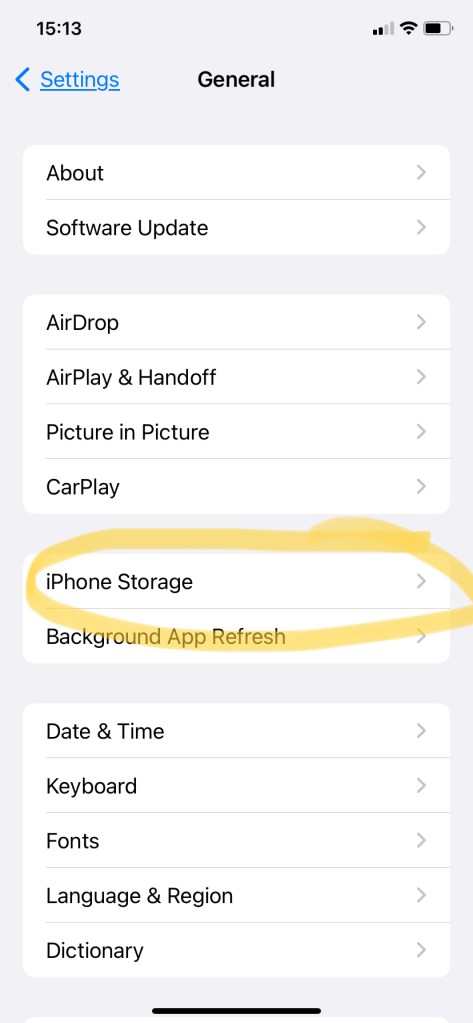
Steps to do this on an iPhone again start with Settings>General (see above, far left). Then tap “iPhone Storage” (below, left). Here you can see at the top how much storage you have available and in total 61.9GB available out of 64GB total). In the example below, right, you can see the phone is almost full. The color coding shows which categories are taking up the most space. Clearly in this case, there an opportunity to clean up the apps, and scrolling down you will see in descending order which are taking up the most space. Well someone likes her podcasts!
Delete large files, videos, photos, podcast episodes. Above right you can see there is an opportunity to free up 4GB of space just by deleting videos saved onto the phone. When I tapped that section, I discovered I’d saved movies off of Disney+ and Netflix onto my phone. Some of them I’d done in error and some I’d already watched by casting onto the tv screen but forgotten to delete. There was an easy 4GB freed up. In the image above right you can also see Overcast is taking up over 17GB of space. This is mostly due to the individual podcast episodes rather than the app itself. Many of these have been listened to and could benefit from a clear out.
There are several more fast and easy tricks to speed up your old smartphone, which we’ll cover in the very next post. If you’d like to automatically receive new posts into your inbox, simply subscribe below for free. We will never sell your data.
Have you ever frittered away time scrolling through historical messages on your phone looking for that one piece of information you know you’ve already been told? How much time do you waste before you give up and ask the person again for their address, travel dates, recipe or other needed information? There is a better way!
Find that info
By using the search function in your text messages or WhatsApp chats, you can quickly find the information you know (or think) you’ve received or even sent. First you will either need to recall which platform (eg text or WhatsApp) was used to send the information. If you can’t recall, it simply means you may have to check each platform one at a time. So choose the one you think most likely to have been used. You probably already know with whom you had the text conversation, so you might be tempted to go directly to that chat string to look for it. Here’s an example where technology hasn’t caught up with logic. As of today, you cannot choose a conversation string and search there specifically. This also probably why many people don’t know how to search their texts, but it’s relatively easy with these steps:
Text Message Search
Tap on to open your Text Messages. Do not choose a string (Sender or Recipient). Instead, gently pull down from anywhere (except the very top) of the screen. This will reveal the search bar near the top, just under the “Messages” title and before the actual message strings. See before and after in image below.
Now comes the thinking part. Try to determine a word or exact phrase that was used in that chat that would be likely to be unique to that conversation. For example, if you’re searching for the dates a friend sent you for her vacation in Rhodes, rather than search on “Brenda’s vacation”, instead try “Rhodes” (unless you live in Greece, in which case there might be a lot of mentions of Rhodes, lucky you). If you can’t think of something unique about the conversation, try searching on a term that was used surrounding that conversation. For example, a friend recently moved and shared her address, which I hadn’t added to my contacts and needed to share with another friend. Instead of searching “move” or “address” (which would have brought up countless chats), I recalled her mentioning it was near Coal Drop Yard (a small, trendy market in London). As you can imagine, not many conversations contained the words “Coal Drop” so the chat came right up, with those words highlighted. In one additional tap I had her street address in front of me.
The search results will come up, usually in reverse chronological order ie most recent first. It will say which people or persons the chat was with and the section of the conversation where those words are used. Tap on the one you think is likely the winner, and you’ll bring up the whole chat at that point. Unless it was the first or last thing you had in the chat, you’ll also see what came just before and just after mention of that word.
If your first guess of which chat contains the needed information was not correct, simply tap the back arrow < at the top of the screen, and you’ll be back to your search results and can try another string.
WhatsApp Search
The process is similar to the above. Tap on WhatsApp to open the platform. Do not choose a specific chat string, and if the app opens to a specific chat, tap the back button < to get to the overview page for WhatsApp chats. Pull down gently from anywhere in the middle of the screen to reveal the Search bar.
Follow Steps 2-4 in above section.
In the case of my friend’s new address, I found it in less time than it took the other friend to ask me and a whole lot less time than it would have taken to scroll through screens and screens of our daily group chat.
If you’d like to keep getting tips like this on using the tech you’ve already got, simply add your preferred email address and hit Subscribe.







 Now to add an account, open the Settings app
  , access the Mail submenu. Select “Accounts” and tap on “Add Account”. Choose the provider and follow the prompts. See below the steps from within Settings.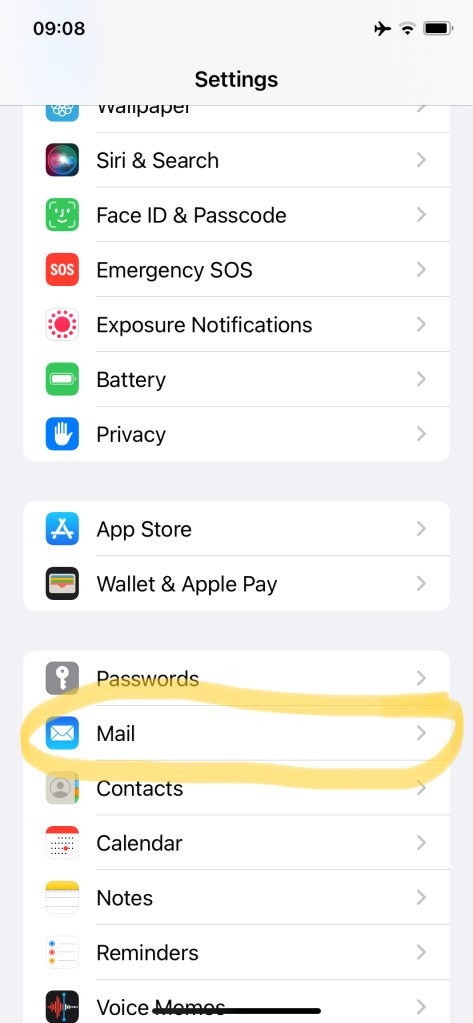
 Tap the menu icon at the top left. Tap on “Settings” and select “Add Account”. Choose an account provider and follow the prompts.
 and tap the icon to bring up the front-facing lens, shown below highlighted in yellow.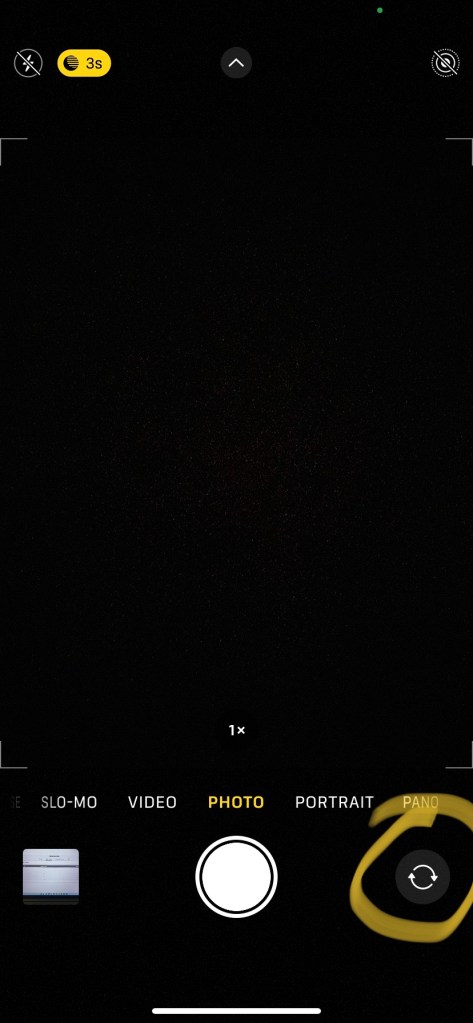


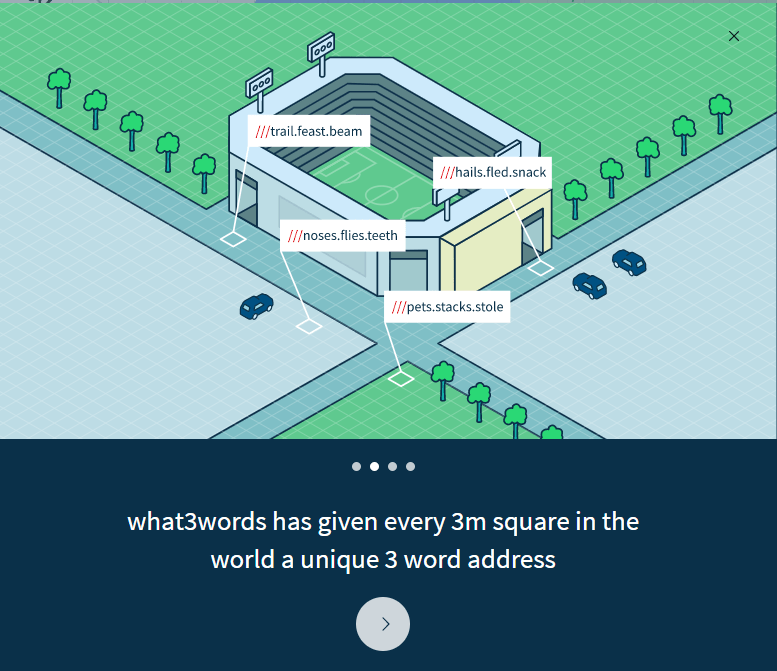
 and tap to open. Type in your 3 words with a “.” between each. See below, left. Then if you’re looking for directions, tap “Navigate”. You’ll be brought to a (third party) map, where, as normal, you can choose your desired mode of transport (car, bus/train, walking) and simply follow the blue dot to the pinned location (in red). See below, right.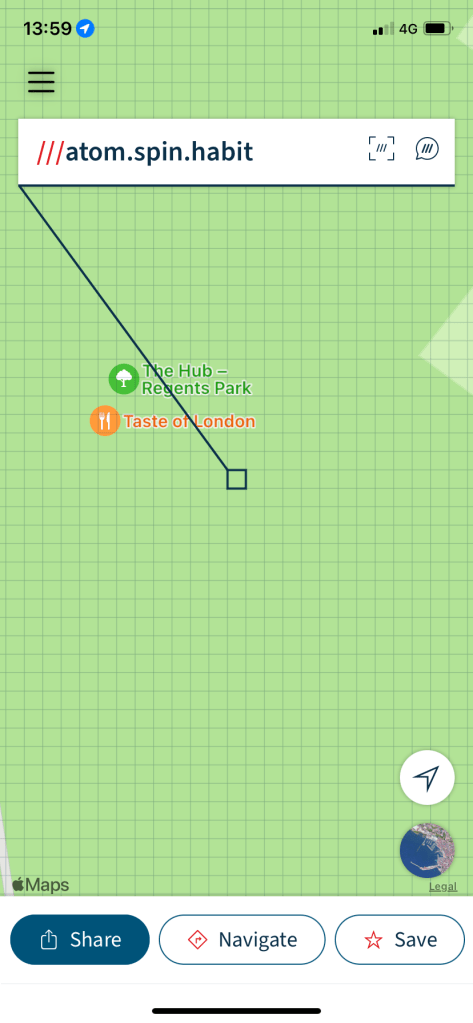


 and then Settings.









 to open your Text Messages. Do not choose a string (Sender or Recipient). Instead, gently pull down from anywhere (except the very top) of the screen. This will reveal the search bar near the top, just under the “Messages” title and before the actual message strings. See before and after in image below.

 to open the platform. Do not choose a specific chat string, and if the app opens to a specific chat, tap the back button < to get to the overview page for WhatsApp chats. Pull down gently from anywhere in the middle of the screen to reveal the Search bar.
 Gransplain - Smart Technology. Smarter You.
Leave a comment