Lots and Lots of Texts

Are you someone who sends one long text vs multiple shorter ones in a row? I thought so. Have you ever noticed it seems that friends and family who are under 30 seem instead to send a barrage of short texts of one sentence or sometimes one word each? As your phone pings 4, 5 or more times in quick succession, you may be asking yourself, “Why?!”

What’s with all these text messages?

Quite simply, most subscriber packages no longer charge by the number of texts you send. Or if they do, the number is high enough to fill up all your friends’ inboxes without coming up to your limits.

However if you’re over 30 (you’re reading a blog called “Gransplain” after all), chances are you started using texting at a time when you were charged for each text you sent. And the cost added up quickly, so you were conditioned to send fewer, longer texts to avoid those extra charges.

It has taken me a long time to change my habits in light of the new reality of unlimited texting. But change is worth it for the advantages I’ll outline below. If you’re still sending long texts covering multiple topics in each (and plenty of people in my circle are), perhaps you should consider updating your texting habits.

The case for shorter texts

  • It’s easier and safer to read short texts when you are on the move. Not driving, because it’s a bad idea (and illegal in most places) to read texts while driving. But even while walking, I can manage to absorb a series of shorter texts but have to stop and stand out of the flow of other pedestrians in order to read a longer text. And my dog really doesn’t appreciate her walk being interrupted for no good reason.
  • The biggest advantage I’ve found is that shorter texts allow you to easily respond to just the relevant bit. So if someone has sent you a longer text with 2 or 3 thoughts, if you simply respond “Yes”, there is lots of room for confusion about what you’ve agreed to! With a short text within a string, for extra clarity you can select just that text and tap “reply” to send your brief “yes” response. Otherwise for clarity you have to type a longer response eg “To your question about my availability next Monday, yes, I’m free. But no, I don’t really feel like going with you to visit your Aunt Daisy.”
  • Shorter texts also minimize the issue of crossed messages. How many times have you been still in the middle of typing a long-ish response when you get an additional text from the sender which now makes your intended reply confusing, nonsense or moot? It used to happen to me all the time. Less so now that I send multiple short texts. The other person knows you’re responding so hopefully will pause on shooting you new questions that would require a different response from you.
  • The conversation is more natural, especially for younger people. We tend to really annoy them with our rambling texts and slow responses, ending up reinforcing a perceived generation gap. Why not concede on this point that they’ve got the right idea?

So what about all that pinging?

In short, don’t worry about it. It won’t bother them. If it does, they can turn notifications to silent, and you can do the same if it bothers you to receive them. Or you can just get used to it. After all, there’s not much difference to receiving one ping you know you want to find out the source of and a series of 4 or 5 pings in quick succession. You’ll soon get used to the idea it’s probably one message in 4 or 5 parts. Not more urgent, not more important.

You know you want more tips on using your smart tech, so why not get them automatically into your email inbox. We won’t share your email without your permission. Hit “Subscribe” for weekly updates.

Gransplain

Text With Effect

You can’t dial back the years to be a teenager again, but what you can do is add effects to your texts like the digital natives do. This is one of those tricks that is dead easy but you’d be unlikely to stumble upon how to do so.

How to Add Text Effects

Type your message as you normally would.

Instead of tapping “Send”, hold down the Send key.

A vertical bubble will appear on top and to the right of your draft message. Now you’ll have your choice of some fun effects. You can explore each before choosing one.

Slam – slaps down the message, including jiggling a previously sent message on screen.

Loud – jiggles the message before landing.

Gentle – starts tiny and grows to normal font size.

Invisible Ink (my fave) – delivers illegible twinkling dots. Recipient (and sender) needs to know to swipe on it to reveal the message.

When you’ve chosen and are ready to send the message, tap the corresponding up arrow in blue circle. Alternatively, if none of the effects are right for your message, instead simply tap the grey “x”, and you’ll return to your draft, which you can send as normal.

Imagine how impressed your teenage friends or family members will be to receive a text from you with punch!

If you’d like to automatically receive other tips and tricks into your inbox each week, simply sign up below. We promise to keep your address just between us.

Gransplain.com

Clear your Browser’s Cache

When you run into an issue, have you been confused by the guidance to “clear your cache”? Despite sounding like something for which you’ll need to clear your calendar for the afternoon to do, in actuality it’s fairly simple.

What is a Cache and Why Should I Clear It?

In simple terms, a browser cache takes elements from the websites you visit and saves them in a database. The next time you go to a website you’ve visited before, caching results in faster page load times and a better overall user experience. For instance, caching allows you to see the items you’ve left in a shopping cart, retain login credentials and any personalized user preferences (like font size) you’ve input previously.

Most of the time, you won’t even notice browser caching is happening. It runs entirely behind the scenes and usually doesn’t affect your web browsing. However, sometimes the cache might have become corrupted and interfere with a web page’s proper functioning. A simple and effective first diagnostic step when encountering an error is to clear the browser cache. Another reason to clear the cache is if you’re re-visiting a website for a quote, say for a flight, and want to ensure you’re not being pegged as a captive audience, willing to pay a higher rate. In this latter case you can clear your browser cache or alternatively open a new page incognito, instructions for which you can find in our previous post here.

How to Clear Your Browser Cache

Instructions will vary depending on which browser you are using. We’ll cover two of the most popular ones here. When using by far the most popular browser in the world, Google Chrome start by clicking the “three dots” in the top right of your browser window. Then find the More Tools option and select Clear browsing data from the submenu (see image below).
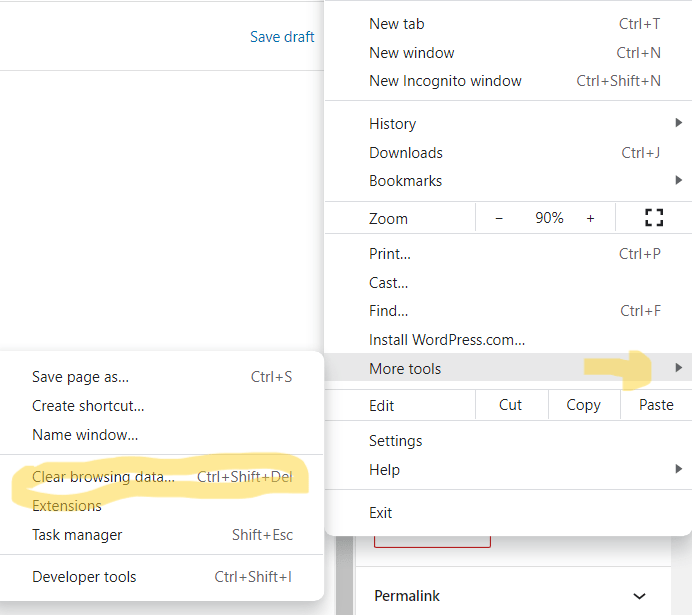
You can change the time frame you’d like cleared. Select the Time Range field, then make your choice from one of the options like the last hour, 24 hours, 7 days (default choice), 4 weeks, or “All time” (not since the dawn of history, at least not yet…).

Hit the blue “Clear data” button (see immediately above, right), and you’re done.

To clear the browser cache for the 2nd most popular (and apparently the fastest) web browser, Safari, the most straightforward way is to go to Safari > Clear History. This will clear your entire browsing history including cookies and website data.

A popup window appears to let you choose a desired timeframe to delete including the last hour, today, today & yesterday, the entire history. Finally, click on the Clear History button to finish.

Now open a new tab on your web browser and go to the desired website, and you should enjoy a fresh start.

If you’d like to receive tips like these directly into your mailbox, subscribe for free by adding your email and hitting the “Subscribe” button. We will keep your data just between us.

Gransplain.com

What Your iPhone Status Bar Says About You

On your iPhone, the status bar is the oval serving as background to the time display at the top left. Don’t worry, it’s not there to judge or rate you. Rather, it can appear as one of 4 different colors to show you the status of your phone’s current activity.

Here you can quickly check if you are actively using one or another function like calling, directions, etc. Let’s see what they each mean.

Green status bar on the iPhone

Seeing green
Image Credit: Apple

If there’s a green status bar behind the time display, it indicates one of two things:

Either that you’re currently on a phone or video call or that your personal data hotspot is on and is being used (by someone else). So if you want to confirm the call you thought you finished has actually disengaged (before you start telling someone else all about the conversation), check there’s no more green oval.

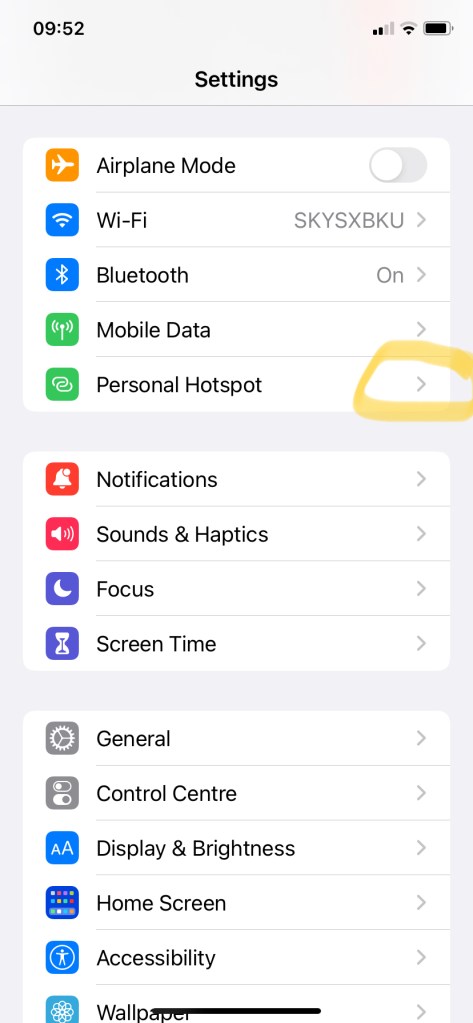
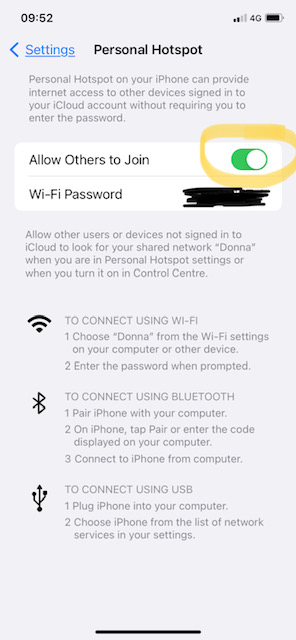
If you didn’t intend to share your data with others, you can easily switch off sharing your hotspot by going into Settings/Personal Hotspot and ensure that “Allow Others to Join” is not showing a green bar (see below). If it is, simply tap it to show grey. As using another’s hotspot requires knowing the 8-digit hotspot password, it’s unlikely a random stranger would have been able to consume your data, so there’s little to worry about in leaving it on.

Red status bar on the iPhone

Red revealed
Image Credit: Apple

If you see red behind the time, it means you’re currently recording either a video or sound (eg. a voice memo).

To stop it quickly, simply tap it. If you’re looking for tips on how to record sound, you can find the basics in our previous post here.

Blue status bar on the iPhone

Out of the blue
Image Credit: Apple

The blue color also shows one of two things. Most commonly, it indicates that you’re actively using your location, for instance using a mapping app to get directions. Because location service drains the battery very quickly, It’s helpful to be able to check at a glance if it’s still on so that you can be reminded to turn it off once you no longer need it.

Alternatively, the blue status bar can indicate that you’re using the Screen Mirroring feature on your iPhone.

Screen Mirroring or casting is when you wirelessly broadcast what’s on your iPhone screen in real-time to another display nearby, like your TV screen. It’s a great way to be able to see and share photos and movies on a larger screen. If you missed our post on how to do so, you can find that here.

Purple status bar on the iPhone

Purple power
Image Credit: Apple

Purple is the status bar color you’re probably least familiar with as it indicates you’re using SharePlay.

SharePlay is a feature used to share content like a video or music with friends or family during a video (FaceTime) call.

Just see the time with no status bar behind? Then you’re not actively using any of the above features. Simple.

If you’d like to receive our weekly posts automatically into your email inbox, simply type your email address and hit “Subscribe”. We promise we’ll keep your information just between us.

gransplain.com

Winning at Happy & Well

What can we mean by “Winning at Happy & Well”? Quite simply, it means that as you go through life, do you want to be both healthy and happy? Presumably, yes! If we take a scientific look at how to achieve this, the conclusive answers how to do so are consistent across peer-reviewed studies. The simplicity of the answers may surprise you…

Looking at a well-known study by researchers at Harvard Medical School, whereby they followed 268 students (albeit all men, but from many walks of life) over decades until they died, they took measures of their physical and mental health and self-reported happiness levels. What they found was that those who fell into the group who were both physically and mentally healthy as well as happy had significant differences in several factors vs those who didn’t fare so well on health and happiness outcomes.

Love Conquers All

We won’t keep you in suspense. The single most important trait of Happy & Well elders is healthy relationships. The longtime study director, Harvard psychiatry professor George Vaillant, put it this way “There are two pillars of happiness….One is love. The other is finding a way of coping with life that does not push love away.” Moreover, “The people who were the most satisfied in their relationships at age fifty were the healthiest at age eighty.”1

The research points out that “love” and “healthy relationships” does not exclusively refer to romantic love/marriage. Meaningful intimate friendships that go deeper than work friendships or “transactional” allies are highly correlated with being Well & Happy. In fact, having your spouse as your only close friend is not enough.

The reference to “way of coping with life” covers a lot of the behaviors that promote health. Here you may find few surprises:

  • Don’t smoke.
  • Healthy body weight, avoiding yo-yo dieting and obesity.
  • Physical activity. Walking counts. (See the post on how your smartphone can help assess your walking.)
  • Healthy coping style – honest assessment of problems, confronting them directly while without unhealthy emotional reactions.
  • Lifelong learning – lots of reading and curiosity. (Congratulations, in reading this blog, you’re on the right path!)
  • Stable long-term relationships – having people you can count on.

1 Vaillant, George E (2012) “Triumphs of Experience: The Men of the Harvard Grant Study”.

Overcoming Barriers to Building Friendships

The most common reason people tend to give for not cultivating stronger friendships is “I don’t have time.” The obvious answer to that is to make it a priority. Make it more important than that extra hour of work. Even if your work and commute should take 50 hours per week, after subtracting adequate time to sleep, eat and fulfill family obligations, that still leaves you with several hours in each week you could devote to healthy relationships. You just have to make it a priority. For your own health and theirs.

If your attitude is that of a workaholic, you should remind yourself of the tremendous cost of not changing your attitude. To yourself and loved ones.

If you genuinely feel you can’t perform your job in a reasonable time, perhaps it’s time to look for solutions to help you be more efficient. Here technology can help, with many programs designed to help you plan your day efficiently, getting the most important tasks done first. Or perhaps it’s worthwhile to look into a change of employment.

Another common barrier is not knowing where to start. Gone are the days we could rock up to a fellow classmate with a broad smile and ask “Wanna be my friend?” Or are they…? I’ve recently joined a group of women who responded to a very similar message. A woman posted a short message on our local neighborhood social platform (Next Door) that she was in her late 50s and finding it difficult to find and make new friends and did anyone feel the same and would they be interested in meeting up for coffee? Within a week she’d had over 50 positive responses. And a month after posting, she has formed a Whatsapp group where there are now 99 participants who drop in as and when to 3 weekly coffee or pub meet-ups. And in between the conversation keeps going with offers of encouragement and help (as well as discounted tickets to interesting events).

A tried and true method is finding a hobby you enjoy with meet-ups or classes in your local area. There you can learn new skills, practice what you enjoy and meet others with a similar interest. Being a less direct method, friendships may take time to build, but if you’re patient you’ll reap the rewards. If you have an unusual hobby, you may want to search for community groups on Facebook or other social platform.

Whichever way you choose, the first step is always the most important. Good luck.

If you’d like to keep receiving tips and updates on how technology you already own can help you cope with challenges and make your life happier and healthier, be sure to subscribe below. It’s free and we promise to keep your details just between us.

Gransplain.com

Accelerated Excel Tips (Part 2)

Excel is a simple and handy way to keep data in an order so that it’s easy to find the information you need to make decisions. If you missed the first 3 basic tips, you can find them here.

Now we’ll take you through 2 more related tips to get more out of your Excel program.

Copying Spreadsheets

Often, we’ll want to maintain our data in more than one order. For example, we want the original list to be sorted by last name but maintain a copy of the list in another order (eg. joining date, contribution amounts, RSVP status, etc.). In this case, I suggest copying the original spreadsheet into a new tab and then re-sorting the copy. In this way the original tab contains the list in alpha order, while the copy contains the same data sorted by contribution (or joining date in our example.

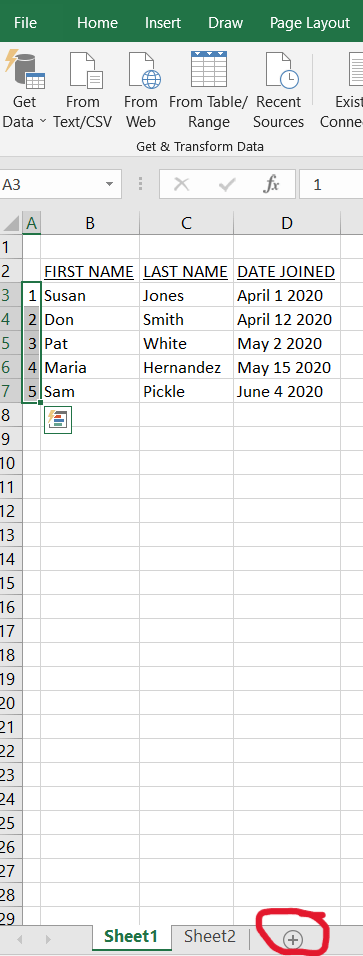
Copying the entire spreadsheet is a doddle. Go to your spreadsheet and select all by clicking the first grey cell. See below, circled in red. Now right click on your mouse or trackpad and select “Copy”.

On the bottom of your tab or spreadsheet, find the small “+” symbol and click on it (see below, circled in red at bottom). This will open a second tab or blank spreadsheet. Any new tabs you create will belong to the same file as the original, so will have the same file name. Later you can re-name each of the tabs so you can keep track of what makes them unique.

Re-Naming Spreadsheets

Re-naming your spreadsheets couldn’t be easier. Simply place your cursor on the tab you want to name (eg Sheet 1) and double click. Hit delete to erase the holding name (“Sheet 1”) and simply type the description of this version of the list. I recommend always keeping the first tab as the Master List. In that way, if you (or let’s face it, someone else. It’s always someone else…) makes a costly mistake erasing or irrevocably messing up the data, you’ll always have the master.

There are ways to protect the data so no one can change it, but that’s for a more advanced lesson. For now, let’s concentrate on choosing names that at a glance (ie without opening up each tab) will quickly show you what you need to know. Think of these as the spine of a book or what you’d put on the index tab in a paper filing system.

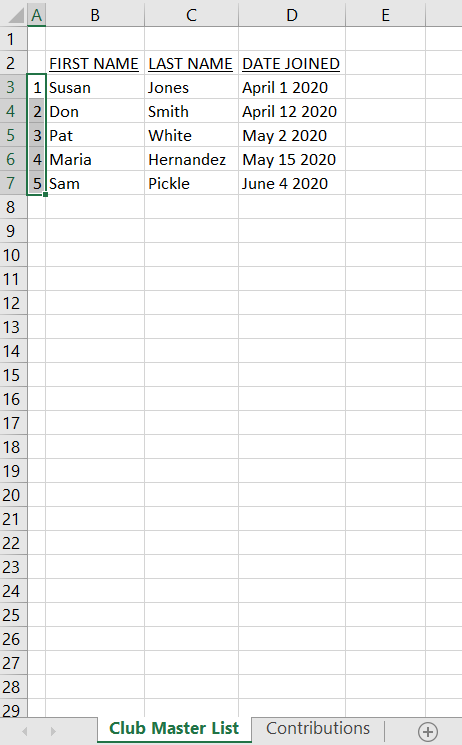
So if you need an updated version each month, I’d name the tabs by the month and year. Remember the filename itself will contain the overall subject matter (eg Club Z Members) so there’s no need to repeat that on each tab. Below is what our simple file now looks like with 2 sheets each named accordingly.

We’ll cover more time- and frustration-saving tips for using Excel in future posts, so be sure to subscribe below to not miss out. We always keep your data just between us.

Gransplain

Accelerated Excel Tricks (Part 1)

Whether you use Excel frequently or only once in awhile, it’s useful to discover tricks to help you quickly get the professional spreadsheet you’re after. Here are just 3 basics to easily make use of the program for your purposes.

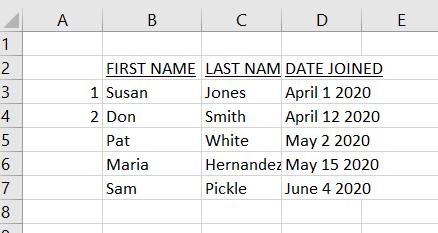
Sometimes you may have a list of data that is randomized, i.e. is not organized in order. Perhaps it’s a list of contacts you’ve been adding to as and when you receive them, but now you want to sort them in order and make presentable for sharing. Let’s use this simple unformatted list of names and dates to demonstrate a few shortcuts.

Adjusting Column Widths

First place your cursor at the right edge of the top row of the column you wish to adjust. The cursor will let you know you’re in the right position as the thick cross will turn into a thin cross with tiny arrows on the horizontal ends.

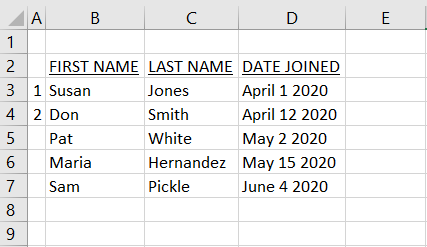
Let’s start with Column B that contains first names. You can either right click, hold and drag the column to the right to enlarge or to the left to shrink then release the cursor. Alternatively to let Excel decide the best width given all the contents of the column, instead of clicking and holding, simply double right-click once you’ve got the “thin” cursor. This is called auto-adjusting, and you can see below Column B now has its width set to incorporate the longest content (in this case the title).

And now all column widths have been adjusted.

Adding to a Pattern

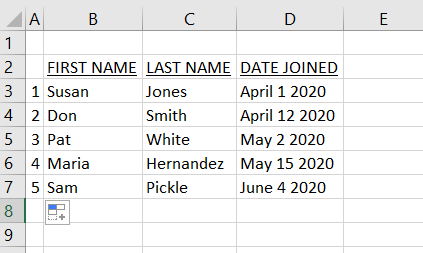
Excel allows you to start off a common pattern and issue a command to complete or repeat the pattern. This works for ordered numbers like lists and dates as well as days and months in words. In the above example, if we don’t want to have to fill in the numbers in the first column, we can use this feature. Simply highlight the pattern you have so far, place the cursor on the bottom right corner of the last entry until you get a solid cross (no arrows). Drag this down as far as you’d like the pattern to continue and release. You should get the pattern you intend. If you get something different, in this case say, 1,2,1,2,1,2 instead of 1,2,3, you’ll need to manually fill in more data before trying again.

If you need to add more rows later, you simply grab a few rows above the empty cells to establish the pattern (eg “3,4,5”), place the cursor again on the bottom right corner of the last number grabbed (“5”) then drag and release once you’ve covered all the cells you want. There is no need to grab from the beginning, just enough entries to establish the pattern.

Sorting your Data

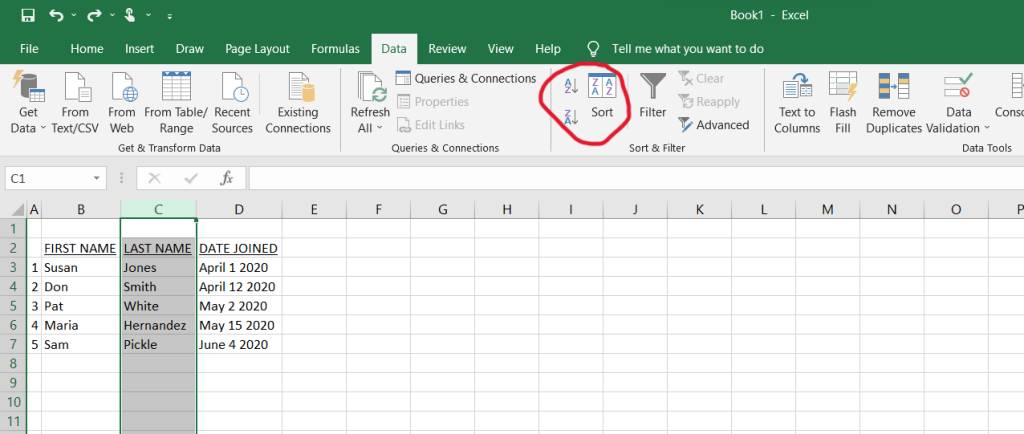
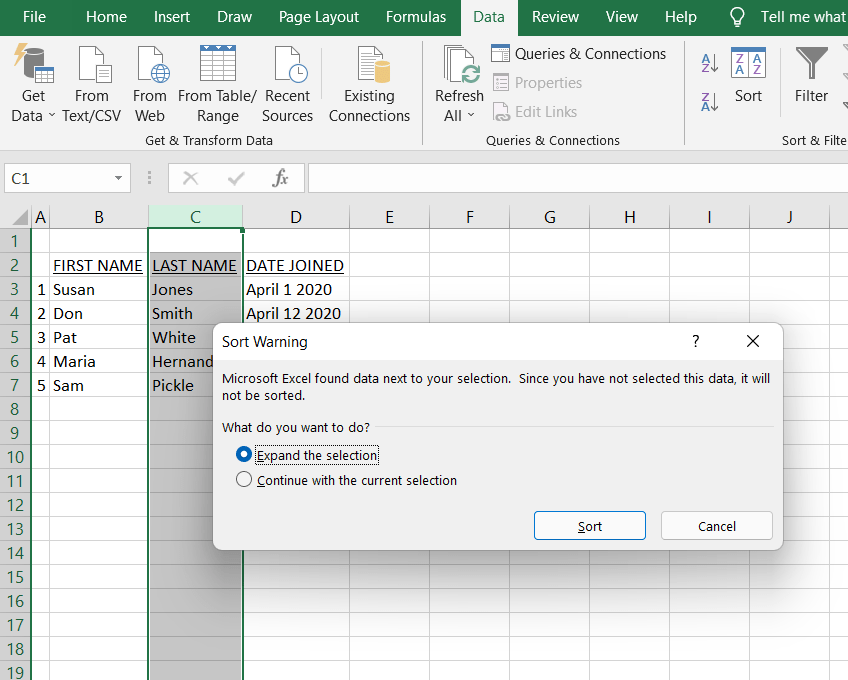
Excel will help you alphabetize any list or put in numerical order. In our example, say we now want to reconfigure the data alphabetically by last name. Click on the data in the column you want to sort (Last Name). In our example, you’ll click on the cell containing “C” above “Last Name”. Then click on the “Data” tab in your toolbar and look for the “Sort” option on the left. See below, left, with “Sort” circled in red.

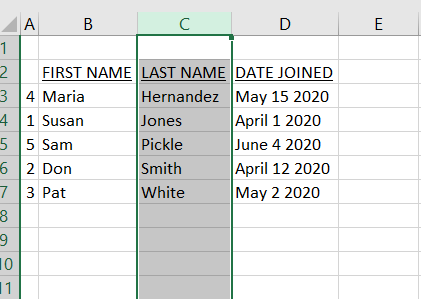
When the “A” is on top of the “Z,” that means your list will be sorted in alphabetical order. If this is the case, you just click on that button once. If however, the “Z” is on top of the “A,” you will need to click on the button twice. As you have now probably guessed, when the “Z” is on top of the “A,” your list will instead be sorted in reverse alphabetical order. Once you click “Sort” or “AZ”, in the case of our example, because there are related data (the first names corresponding to the last names), you will see the pop up message as above right. It is checking that you want to include the first names in the sorting exercise. Yes, we do. Otherwise we’d be jumbling people’s names and only sorting by last name. So keep the “Expand the selection” option ticked and click the “Sort” button at the bottom of the pop-up window. You can see below, we’ve now successfully sorted our list by last name.

Alternatively you can choose to sort by first name or any other column of data you find relevant. For example if you were compiling a list of donors to your charity or hours volunteered at your club, you might want to add a column of those numbers and sort by that in order to prioritize these contributors (or alternatively the laggards) in your communications or activities. You can always re-sort the data to alpha order when you’re finished with the analysis on donations.

Often we’ll want to maintain our data in more than one order. For example, we want the original list to be sorted by last name but maintain a copy of the list in another order (eg. joining date, contribution amounts, RSVP status, etc.). In this case, I suggest copying the original spreadsheet into a new tab and then re-sorting the copy. We’ll cover this in the very next blog, so be sure to subscribe if you don’t want to miss out.

Gransplain

Quick Set the Timer on your iPhone

Want to access your iPhone’s stopwatch in record time? Here’s a shortcut to set a timer for common increments of time from 1 minute to one hour.

How to Access your iPhone Stopwatch, Lickety Split

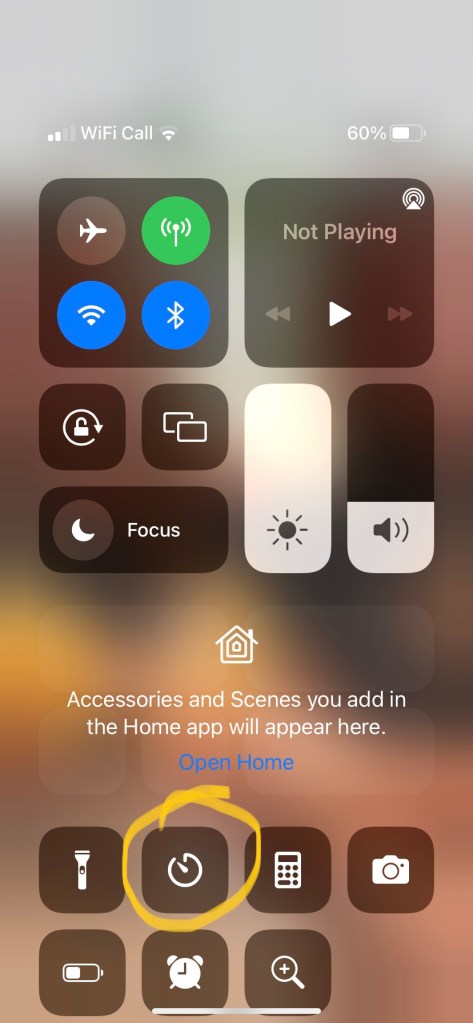
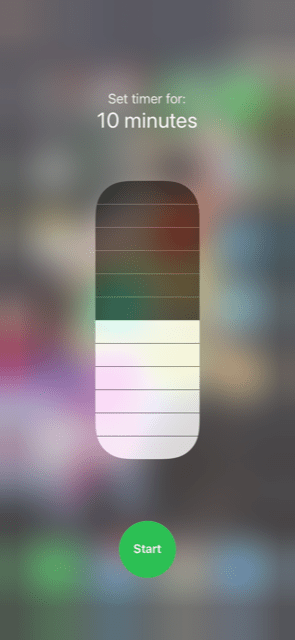
Access your iPhone’s quick menu by swiping down from the top right corner of your screen. The menu should look like the below. Now press and hold the timer icon (circled in yellow below).

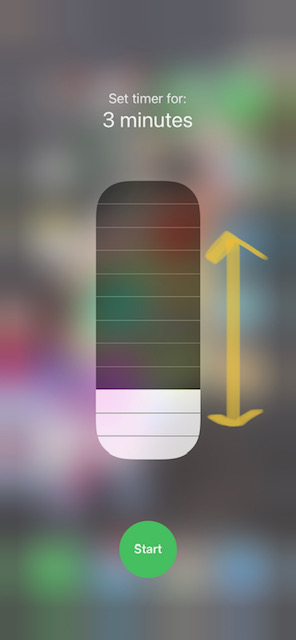
In a split second, this will bring up the options to choose a time from a set menu. The choices start at 1 minute, then 2, 3, 4, and 5 minutes before increasing in increments of 5 minutes up to 20 minutes. Thereafter it skips to 30, 45 and finally 60 minutes. The default is set at 3 minutes, so simply swipe your finger up or down the bars to increase or decrease the time. See images below.

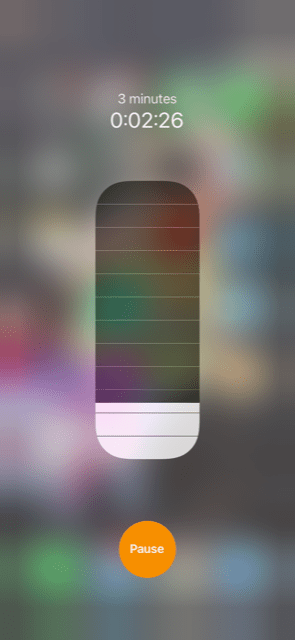
Once you’ve set your desired time, simply tap the green “Start” button. Your total chosen time will then be shown along with the exact time remaining in minutes and seconds, as shown below. The “Start” button turns into a “Pause” button.

If you need to set the timer for an option that is not included in the quick timer bar (eg times including seconds), instead of tapping and holding the timer in the quick menu, simply select it, which will open us the option to choose any combination of hours, minutes and seconds from 1 second to 23 h, 59 min and 59 seconds. Simply flick each column up or down to choose your desired numbers.

Now you’re proficient in setting your timer as quickly or as precisely as you wish.

If you’d like to automatically receive tips like these into your inbox each week, simply add your email below to subscribe for free. We promise to keep your details always just between us.

Gransplain

How to Embed a Link

If you’ve benefited from web hyperlinks embedded into the body of text but don’t know how to do that yourself, you may be surprised how easy it it. Not only will it take mere seconds to set up, but it looks a whole lot neater and more professional to opt for an embedded hyperlink vs having a long string of nonsense text as a link in the middle of your message.

What is an Embedded Web Link?

An embedded hyperlink is when you have text of your choice acting as the link vs showing the actual URL. For example, instead of showing the link as http://www.gransplain.com, it is instead displayed as Gransplain. This can be especially helpful when the URL has a long name such as a particular article like https://gransplain.com/2022/03/08/how-to-check-your-home-wifi-speed/.

How to Create a Hyperlink to a Web Location

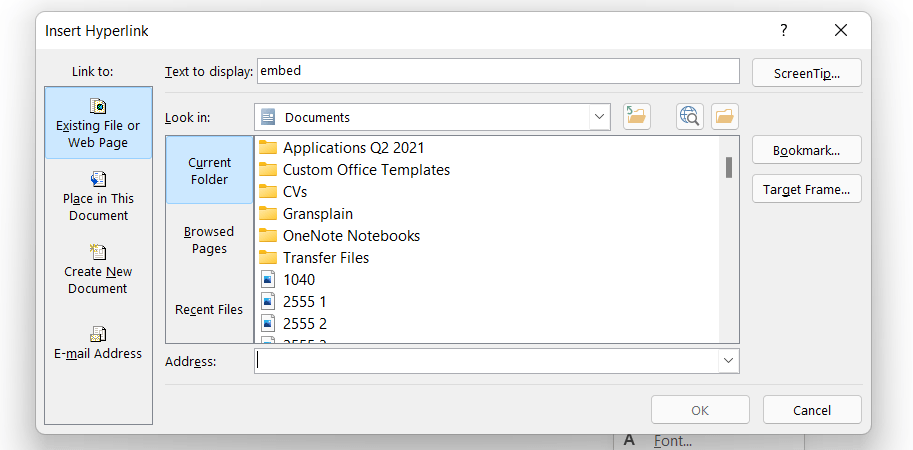
Type the word or words you would like to contain the link then select them. At this point you can use your keyboard to bring up the hyperlink box with Ctrl+K. If you’re using Word, it will look like the image below.

The cursor is ready for you to input the source address. Go to and select the URL (web address), text or picture that you want to display as a hyperlink. For example if you want to embed a web page, go to that page and copy the URL from the address bar. And drop it into the hyperlink box where the cursor is shown above.

Alternatively, if you are using your mouse or trackpad instead, go to the word or words in which you want to embed the link and choose them by highlighting then right click to show the drop down box as below. Choose “Link” (also circled in yellow below). This will bring up the Insert Hyperlink box you saw above. Now paste your link in the Address box. You can do this by right clicking again and choosing “Paste” (or by using the your keyboard Ctrl+V).
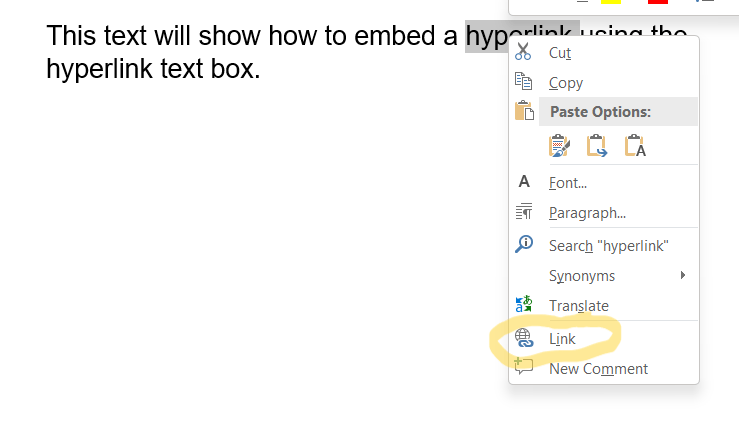
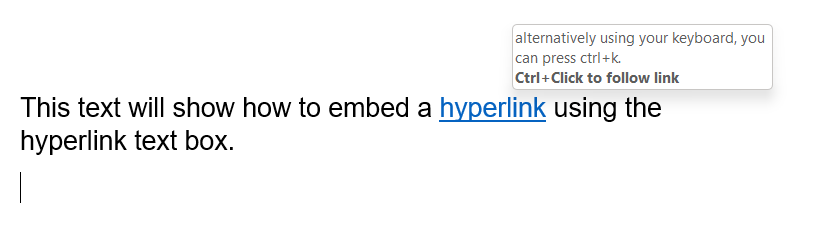
That’s it, you’ve embedded your hyperlink. You can check that it’s there by going to the word or words containing the link. They should now be underlined in blue. If you hover over the word(s) – without clicking – it should display instructions to follow the link (see image below).

Removing or Editing a Hyperlink

If you’ve made a mistake or want to delete or edit a hyperlink, this is easy, too. Simply select the word containing the link and again right click on it. You’ll see the dropdown menu similar to the below, and simply choose Edit or Remove, as appropriate (circled in yellow).

Now you know how to add, edit or remove hyperlinks as embedded text. Brilliant you! If you found this post useful, please let us know by voting below. If you’d like to receive automatically into your email inbox weekly posts on using the technology you already own, simply add your email address into the box below and hit “Subscribe”. It’s completely free and we will always keep your details just between us.

Gransplain

What’s the Wordle?

It seems that from out of the blue, suddenly everyone is talking about and sharing their Wordle scores. If the sight of the score pyramid of different colored tiles leaves you mystified, read this short post explaining what it is, why it’s so addictive and how you can join (if you wish).

What is Wordle?

In short, Wordle is the name of a simple online game you can play on your computer or smartphone. Although it was developed by an independent games company, due to its viral popularity, The New York Times recently purchased it. Also due to its immense popularity, lots of copycat games have launched, usually with similar names eg Wordus. While the copycats let you play endlessly, with the original Wordle, each day a single new 5-letter word is released for which players have six attempts to guess what that daily word is. The playing frame is very simple with 6 empty rows of 5 tiles each and a standard keyboard below these.

Players select 5 letters of the alphabet in the order they would like them to appear. These must be in the correct order to spell out a recognized word, otherwise the guess will be rejected as not viable (but won’t count as a turn). NB the game doesn’t seem to recognize some valid but more esoteric words you’d find in a bona fide dictionary. Accept it.

Once the guess is submitted using the “Enter” key, tiles will change color to give clues to players to the word. A grey letter means that letter is not included in the word of the day, while a yellow letter means that it is in the word but not in the position you’ve chosen. And the coveted green letter means it’s the correct letter in the right place. Once all letters are green, the game celebrates your success. If you are unsuccessful after all 6 attempts, the game lets you know what the word was.

Why so popular?

It’s quick. Most games will take under 5 minutes to play, although I’ve been stubbornly stuck for 10 minutes on occasion looking for possible combinations of missing letters to make up a common 5-letter word.

It’s absorbing. Unlike other online word games, I find it impossible to multi-task while playing Wordle. You simply won’t want to “waste” a guess and you definitely don’t want to sabotage your 98% standing success record. So if you’re interrupted, like me, you may prefer to put it down until you can again lend it your full attention. Fortunately there’s no time deadline and the record of your previous guesses are right in front of you, so there’s no excuse to hiss at friends and family who date to interrupt your Wordle break.

It’s social. After every game you’re prompted to share your outcome with your social circle. On Facebook, Instagram, email or however (you can always take a screenshot). Of course seeing pyramids of colored tiles with mystery numbers from your friends on a daily basis can be annoying, but this is precisely why it’s been a viral success.

It’s easy. I have yet to see any words that aren’t prevalent in everyday speech, so you don’t need an advanced degree and the correct guess is in reach of anyone whose spelling is decent.

It’s free. Or at least for now. The New York Times is known for putting up paywalls. But apparently if you download the website and don’t close it, the games are pre-loaded for years to come. So in theory you would be able to continue to enjoy for free even if they later install a paywall.

What Wordle Looks Like

Below is an example of the playing board. Looking at the image on the far left, you can see that in the first round, “IRATE” was chosen. The “A” and “E” in tile positions 3 and 5 were a lucky guess. They are correct and should be maintained in the next attempt. In addition the “T” is found in the answer, but as the tile is shown in yellow, that means it’s in the wrong position. There are no “I” nor “R”s in the solution, so they are shown in charcoal grey both on the tiles and on the keyboard. The 2nd guess (“STAGE”) results show that the “T” is still in the wrong place, but now we also know there is an “S” somewhere in the solution, just not in the first tile. By process of elimination, we now know for guess #3 that the “T” must be in the first tile position (as we’ve already tried 4th, and the remaining spaces are already solved for “A” and “E”). We guess “TEASE”, hit the Enter key and see in the middle image that they are all green, so we know this is the correct answer. Wordle encourages a spike of dopamine (feel good hormone) with a wiggle and the celebratory message “Impressive”.

Try Playing Wordle

Curious enough to try? Simply download the game in a web browser here. If you prefer using your smartphone, open your web browser on your iPhone or Android and download the link there as, of this writing, no genuine Wordle app.

There are several copycat apps that work in exactly the same way, so if you prefer you can download one of those by typing in “Wordle” in the search bar of your preferred app store (but check reviews first). Most will fund their costs with advertising or in-app purchases, so be prepared to be pestered.

How to Win at Wordle

As mentioned, Wordle is accessible to anyone whose spelling skills are decent, but there are also strategies you can take to improve your score.

  • At least initially, choose a word that both contains letters found more often in 5-letter words (eg vowels, especially E and/or A and popular consonants like “S”, “T”). The list in order for letters found in all English words are: A, E, S, O, R, I, L, T.
  • Try to avoid repeating letters in the first round. In this way you have more chance to know what’s in vs out. Of course, as we saw above, a solution (eg TEASE) may contain repeating letters.
  • In over 100 rounds I have yet to see a solution that is the plural (5-letter) version of a 4-letter word. So avoid guessing words like “teams” or “rates”. There may be exceptions, but unless you’re out of alternatives, why risk it?
  • If you can think of 2 or more possible solutions given the clues so far and one is more of an everyday word (eg “toast” vs “stoat”), go with the more common one. Hint: the answer will never be “stoat” as many people won’t have heard of it.
  • Sometimes you’ll just be plain stuck. Staring endlessly at your keyboard of grey, yellow and perhaps green letters. There’s no shame in “wasting” a round by choosing an uncommon word or using a letter you know isn’t included. Sometimes it’s enough to get you unstuck as you’ll get new valuable clues as to the right answer.
  • Avoid wasting rounds through carelessness of forgetting to include letters you’ve had confirmed are included or using letters which you know aren’t through laziness. Best to double check before hitting “Enter”; it only takes 2 seconds.

We hope you give Wordle a try and end up enjoying it as much as we and millions of others do. If nothing else, you’ll feel “in the know” when friends post their results.

Let us know how we did by voting below. And if you’d prefer to get new posts directly into your email inbox each week, be sure to subscribe below. It’s free and we promise to keep your details just between us.

Gransplain.com